Security & Surveillance
How to Search CCTV Footage for a Person or Vehicle: 5 Methods
How to search CCTV footage for a person, vehicle or event: five methods from timestamp scrubbing to natural-language video search, with time math and steps.

TL;DR
To search CCTV footage, narrow by time and camera first, export in the native format, then use motion filters or AI search to find the person, vehicle or event. This guide compares five methods with worked time estimates.
To search CCTV footage for a person, a vehicle or an event, first shrink the haystack (time window and cameras), then export the clips in their original format, then apply a search method that matches how much footage is left. There are five practical methods, from scrubbing a timeline to describing the scene in plain English. This guide explains each, with the time math, so you can pick the fastest one that still holds up as evidence.
Why is searching CCTV footage so slow?
Searching CCTV footage is slow because review time equals recording time unless something filters it. Eight hours of footage from one camera takes eight hours to watch at normal speed, and incidents rarely sit on a single camera.
A worked example makes the scale clear. A site has 20 cameras, and a vehicle was taken from the lot sometime overnight. The window is 8 hours.
| Step | Footage to watch | Time at 1x |
|---|---|---|
| All 20 cameras, 8 hours | 160 hours | 160 hours |
| Only the 4 cameras covering the lot and exits | 32 hours | 32 hours |
| Same 4 cameras, 90-minute window narrowed by the gate log | 6 hours | 6 hours |
| Same 6 hours at 8x playback | 6 hours | 45 minutes |
Narrowing is worth more than any tool. The video review cost calculator turns hours of footage into labour cost, and the article on moving beyond manual video review covers why this does not scale. When the window is already measured in hours across many cameras, follow how to find a moment in hours of CCTV footage for sync and skim steps before you pick a search method from this list.
Method 1: How do you search by time and camera?
Search by time and camera first, because it is free and it removes most of the footage. Use any outside event that has a time: an alarm, a badge swipe, a gate log, a call to the police, a delivery receipt.
- Write down the earliest and latest time the event could have happened.
- Add a buffer of 10 to 15 minutes either side, because recorder clocks drift.
- Check the recorder clock against a trusted time source and note the offset. If the recorder is 3 minutes slow, every timestamp you quote is off by 3 minutes.
- List the cameras on the route into and out of the area, not only the one that faces the spot.
The timecode calculator helps when you need to add offsets or convert between frame-based timecode and clock time.
Before exporting large clips, confirm your site upload can carry them. The guide how much bandwidth CCTV cameras need estimates LAN and upload load from camera bitrates.
Method 2: How do you use motion and smart filters on a recorder?
Motion search and recorder-side filters cut a window down to the moments when something changed in the frame. Most NVRs and VMS products let you draw a region on the picture and list only the clips with motion in it.
This works well on quiet scenes, such as a closed office at night. It fails on busy ones: wind, rain, headlights and insects trigger motion, and a crowded entrance triggers it constantly. Many modern recorders add person and vehicle classes, which helps, but you still see every person or every vehicle, not the one you want.
Use this method to answer "when was anything there?", then switch to another method to answer "which one was it?".
Method 3: How do you scrub with speed and thumbnails?
Scrubbing means playing at 4x to 16x speed or using timeline thumbnails and watching for changes. It needs no special tooling and is reliable for short windows.
The risk is missed events. At 16x on a 30 fps camera, you see roughly two frames per second of real recording, so a person walking through a doorway in two seconds can fall between frames. Keep speed at 4x or lower around the critical minutes, and use a second reviewer for anything that matters.
If you need stills for a report, the video frame extractor pulls individual frames from an exported clip, running in your browser.
Method 4: How do you search by attributes in a VMS?
Attribute search lets you filter for things like clothing colour, vehicle colour or type, or licence plate text. Camera and VMS vendors increasingly offer it. For example, the Verkada comparison page and the video intelligence versus VMS guide describe where a camera platform's built-in search is the right tool.
Strengths: fast, lives where the cameras already are. Limits: the attributes are a fixed list, the search runs only on that vendor's cameras, and results depend on camera angle and light. It also usually cannot answer free-form questions such as "someone carrying a ladder toward the east fence".
Method 5: How do you search CCTV footage in natural language?
Natural-language video search lets you describe the person, vehicle or event in a sentence and returns the matching moments. When the cue is dialogue or signage, see how to search a video archive by speech and on-screen text. It works because the footage is indexed first: a video model turns scenes, speech and on-screen text into searchable representations, and your query is matched against them. The mechanics are explained in the article on enterprise video search in natural language and in the multimodal retrieval API overview.
Examples of queries that suit it:
- "white van backing up to the loading dock"
- "person climbing the fence near the north gate"
- "someone opens the cash office door after closing"
- "forklift near a pedestrian"
Ceptory indexes recorded video that you upload or add by URL through its API, then searches scenes, speech and on-screen text. It does not connect to live camera streams or sell cameras, so the workflow is: export the relevant clips from the recorder, index them, search. For a step-by-step version, see the guide on monitoring CCTV footage with AI and the government and security solution page.
What does it cost?
Ceptory pricing is $0.042 per minute indexed plus $0.0015 per minute infrastructure, and search is $4 per 1,000 queries, with the first 10 minutes of indexing free. See the pricing page. Indexing the 6 hours (360 minutes) from the example above would be about $15.3 before the free minutes, and each query about $0.004. That compares with the 32-hour manual route in the table. The estimate is illustrative: it assumes you indexed only the narrowed clips.
What are the limits?
Search results are leads, not proof. A model can match a similar-looking person or miss a small, distant or dark subject, so verify each hit in the original clip. Poor angles, low resolution and night noise reduce what any method can find. Ceptory publishes no accuracy figure, so test it on your own footage first.
How should you export CCTV footage before searching?
Export in the recorder's native format where you can, and keep an untouched original. The FBI's best practices for retrieving video evidence from digital CCTV systems advise pulling the native, proprietary recording whenever possible to preserve integrity and image quality, with a non-proprietary export as a secondary copy for convenient viewing (FBI, best practices for the retrieval of video evidence from digital CCTV systems). NIST, working with the FBI, has also researched an interoperable export solution to help law enforcement acquire and analyze digital video evidence from disparate systems, and hopes it will become a formal standard widely adopted by industry (NIST, CCTV digital video recording and export technologies).
In practice:
- Export the native file plus the player or metadata the recorder supplies.
- Record who exported it, when, from which device, and the recorder clock offset.
- Hash the file or store it read-only, and work on copies.
- Create an MP4 copy only for searching or sharing, and say in your notes that it is a converted copy.
The Bureau of Justice Assistance publishes a guide to video evidence resources and best practices that points to FBI SWGIT guidance on maintaining integrity and archiving digital video. Follow your own legal or evidence policy; this article is not legal advice. Courts are also looking at how footage is searched and kept: see the ALPR warrant case in the Sixth Circuit. Once you have found the moment, how to write an incident report from video footage covers logging timestamps and attaching the clip.
Which method should you use?
Pick by how much footage is left after narrowing and how specific your target is.
| Situation | Best method |
|---|---|
| Known time, one camera, under 30 minutes | Scrub at 2x to 4x |
| Quiet scene, unknown time | Motion filter, then scrub hits |
| Need a vehicle colour or plate, cameras on one VMS | Attribute search in the VMS |
| Many cameras or hours, a described person or action | Natural-language search on indexed clips |
| Court or HR matter | Any method, plus native export and a documented chain of custody |
Methods combine well. A common pattern is time and camera narrowing, then natural-language search to find candidates, then manual confirmation and a written report. The incident report template gives a structure for that last step, and the workplace safety monitoring article shows a related review workflow.
What should you do now?
- Write down the event time range, the cameras on the likely route and the recorder clock offset.
- Export the footage in native format and store the original read-only.
- Narrow to the smallest set of clips that could contain the target.
- Use a motion or attribute filter if the scene is quiet; use natural-language search if you can describe the target.
- Confirm each candidate in the original clip, noting the timecode and camera.
- Record the result in an incident report, with the method you used and its limits.
To try natural-language search on your own clips, index a short recording on the Ceptory home page and compare the results with what you find by scrubbing. The first 10 minutes of indexing are free.
For storage planning before an incident, use the CCTV storage calculator: retention that is too short means the footage is overwritten before anyone asks for it.
Frequently asked questions
How do I search CCTV footage for a specific person?
Start with a time window and the cameras on their likely route, then review at higher playback speed or use a search tool that matches a description such as clothing colour. Confirm every hit by watching the original clip, and log the timecode.
Can I search CCTV footage by describing what happened?
Yes, if the footage is indexed by a video search tool. Natural-language search matches a phrase like 'person in a red jacket near the loading dock' against indexed scenes. A classic NVR usually only filters by time, camera and motion.
Should I export CCTV footage in the native format?
Where possible, yes. The FBI guidance recommends retrieving native recorded data to keep integrity and image quality. Keep the original export untouched and work on copies when you search or convert.
How long does it take to review CCTV footage manually?
At normal speed, review takes as long as the footage lasts. Checking 20 cameras for an 8-hour window is 160 hours of video, which is why narrowing by time, camera and motion matters before anyone watches.
Does Ceptory connect to my live cameras?
Ceptory indexes recorded video that you upload or add by URL through the API. It sells no cameras and needs no hardware change. Export the relevant clips from your recorder, then index and search them.
Ceptory
Search your own footage in plain language. The free tier indexes 60 minutes of video.
Related reading
Keep reading

Security & Surveillance · 8 min read
How to Find a Moment in Hours of CCTV Footage
Read article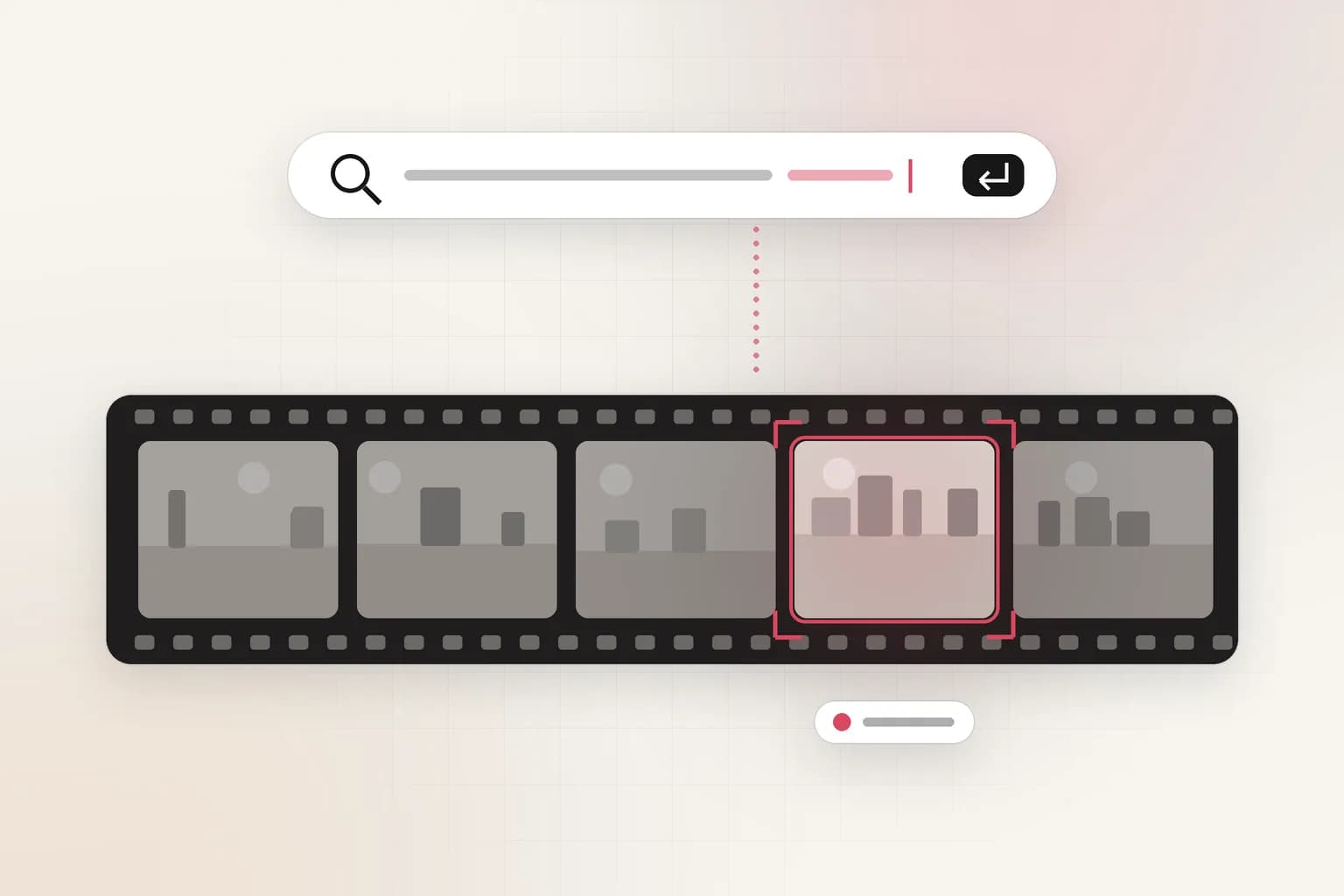
Security & Surveillance · 9 min read
Surveillance Footage Search: Transforming Forensic Review with Natural Language
Read article
Security & Surveillance · 8 min read