
Camera integrations
Connect any CCTV camera to Ceptory
Ceptory Edge runs next to your cameras, watches every stream on site, and sends only the moments with activity to Ceptory, where you can search them in plain language.
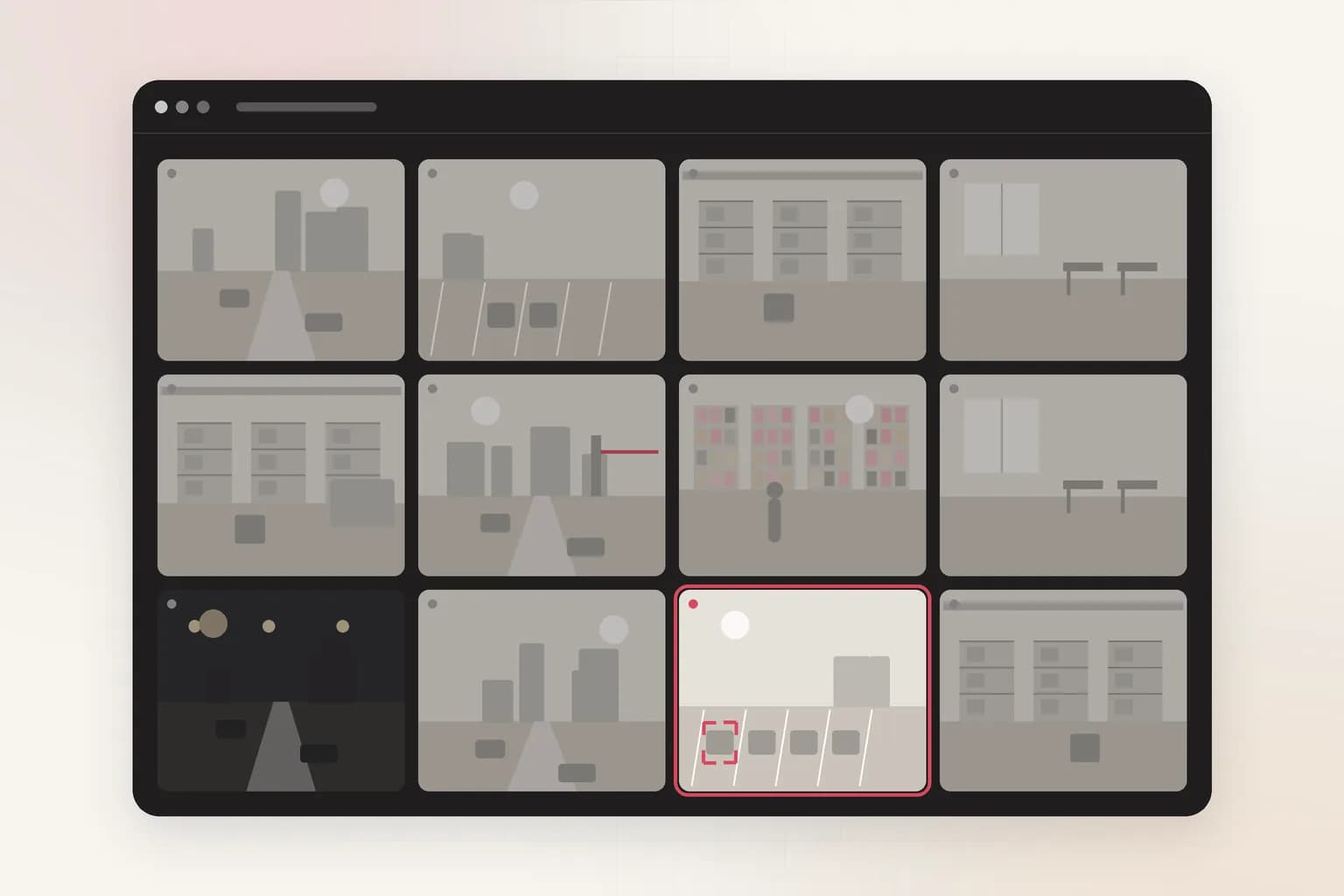
How it works
Local first, cloud for what matters
- 1
Run Ceptory Edge on site
A small agent on any always-on computer on the camera network: a mini PC, a NAS with Docker, a Raspberry Pi 5 or an existing server.
- 2
Add each camera's stream
List the cameras' RTSP URLs in edge.toml, or let the agent find ONVIF cameras for you. The dashboard builds the URL for common brands.
- 3
Only activity leaves the building
The agent watches every frame locally and uploads short clips with movement, plus a few seconds of context before and after.
- 4
Search it in plain language
Clips land in the camera's index next to your uploads, ready for search, analysis and incident reports.
- No inbound ports or VPN: the agent only makes outbound HTTPS requests
- Camera passwords and stream URLs never leave the edge box
- Still footage stays on your cameras and recorders
- Clips queue on disk during internet outages and upload when it returns
- Video is copied, not re-encoded, so small hardware handles several cameras
- Works with cameras, NVRs and DVRs, including analog CCTV through its recorder
Setup guides
Pick your camera or recorder
Stream URL formats, the settings to change on the camera, and fixes for the usual problems.
Install
Four steps from camera to search
The Connect a camera page in your dashboard does steps 1 to 3 for you: it creates the key, writes edge.toml, gives you the command to start the agent, and checks each step live.
1. Create a WRITE API key under Dashboard → API keys. The agent uses it to report cameras and upload clips to your workspace.
2. Write edge.toml with the key, the index the clips should go into, and one block per camera. Values like passwords can come from environment variables with ${NAME}.
3. Check, then start the agent. ceptory-edge check validates the key, the index and every camera stream without uploading anything. ceptory-edge run starts watching.
4. Confirm on the Cameras page. Each camera shows its status, latest frame, stream details and recent activity clips.
[ceptory]
url = "https://www.ceptory.com"
api_key = "${CEPTORY_API_KEY}"   # a WRITE key from Dashboard → API keys

[defaults]
index_id = "your-index-id"        # from /dashboard/indexes/<index_id>
upload_mode = "motion"

[[cameras]]
id = "front-entrance"
name = "Front entrance"
url = "rtsp://viewer:${CAMERA_PASSWORD}@192.168.1.64:554/stream"ceptory-edge check ceptory-edge run
Settings
Tune what gets sent
Set these in [defaults] for every camera, or on a single [[cameras]] block to override.
| Setting | Default | What it does |
|---|---|---|
| upload_mode | motion | motion sends only clips with activity. continuous sends everything. off sends health and snapshots only. |
| segment_seconds | 10 | Length of the pieces the stream is cut into. Clips are built from whole pieces. |
| pre_roll_segments / post_roll_segments | 1 / 1 | Pieces of context kept before and after the activity. |
| max_event_seconds | 60 | Long activity is split into back-to-back clips of at most this length. |
| motion_sensitivity | 0.02 | Share of the picture that must change to count as activity. Lower it for distant scenes. |
| ignore_regions | [] | Areas left out of motion detection, such as the on-screen clock: [x, y, width, height] as fractions. |
| transcode | false | Re-encode to H.264. Only needed when the stream you use is H.265. |
FAQ
Camera integration questions
Do I need to open ports on my router?
No. Ceptory Edge runs inside your network, reads the cameras locally, and only makes outbound HTTPS connections to Ceptory. Nothing on the internet can reach your cameras through it.
Does all my footage go to the cloud?
No. Ceptory Edge watches every frame locally and uploads only short clips with activity, with a few seconds of context either side. Still footage stays on your cameras or recorder. You can also set upload_mode to off to send health and snapshots only.
Are camera passwords sent to Ceptory?
No. Stream URLs and passwords stay in edge.toml on your edge box. Ceptory only receives the camera's name, health, an occasional snapshot and the activity clips.
What hardware do I need?
Any always-on computer on the same network as the cameras that runs Docker, or Python 3.11 and ffmpeg: a mini PC, a NAS with Docker, a Raspberry Pi 5 or an existing server. The agent copies video without re-encoding and checks motion on tiny frames, so a small machine can handle several cameras.
Which cameras work?
Anything that streams RTSP: most IP cameras, NVRs and DVRs from Hikvision, Dahua, Axis, Reolink, Uniview, Hanwha, Bosch, UniFi Protect and other ONVIF devices. Cloud-only consumer cameras such as Ring don't offer RTSP, so they can't connect.
How quickly can I search new footage?
A clip uploads as soon as its activity ends (or after max_event_seconds for long activity) and becomes searchable once Ceptory finishes indexing it, usually within a few minutes.
What does it cost?
Clips are billed as indexed video minutes, exactly like uploads. Because only activity is sent, a camera that sees little movement uses a small fraction of the minutes that recording around the clock would.
My camera records in H.265. Is that a problem?
Use the camera's sub stream, which is H.264 on nearly every camera. If you must use an H.265 stream, set transcode = true for that camera so clips play in every browser; this uses more CPU on the edge box.
Get started
Connect your first camera
No camera handy? The connect flow can run a test camera on the agent so you can try the whole path in minutes.