Search, reports & insights
AI Incident Report Generator for CCTV Footage
Upload the footage, or open any camera alert, and Ceptory drafts the incident report for you: what happened and when, who was at the scene, and the actions taken, ready to review and export to PDF or Word.
Attach a clip and send. The task is filled in; change it to anything you need.
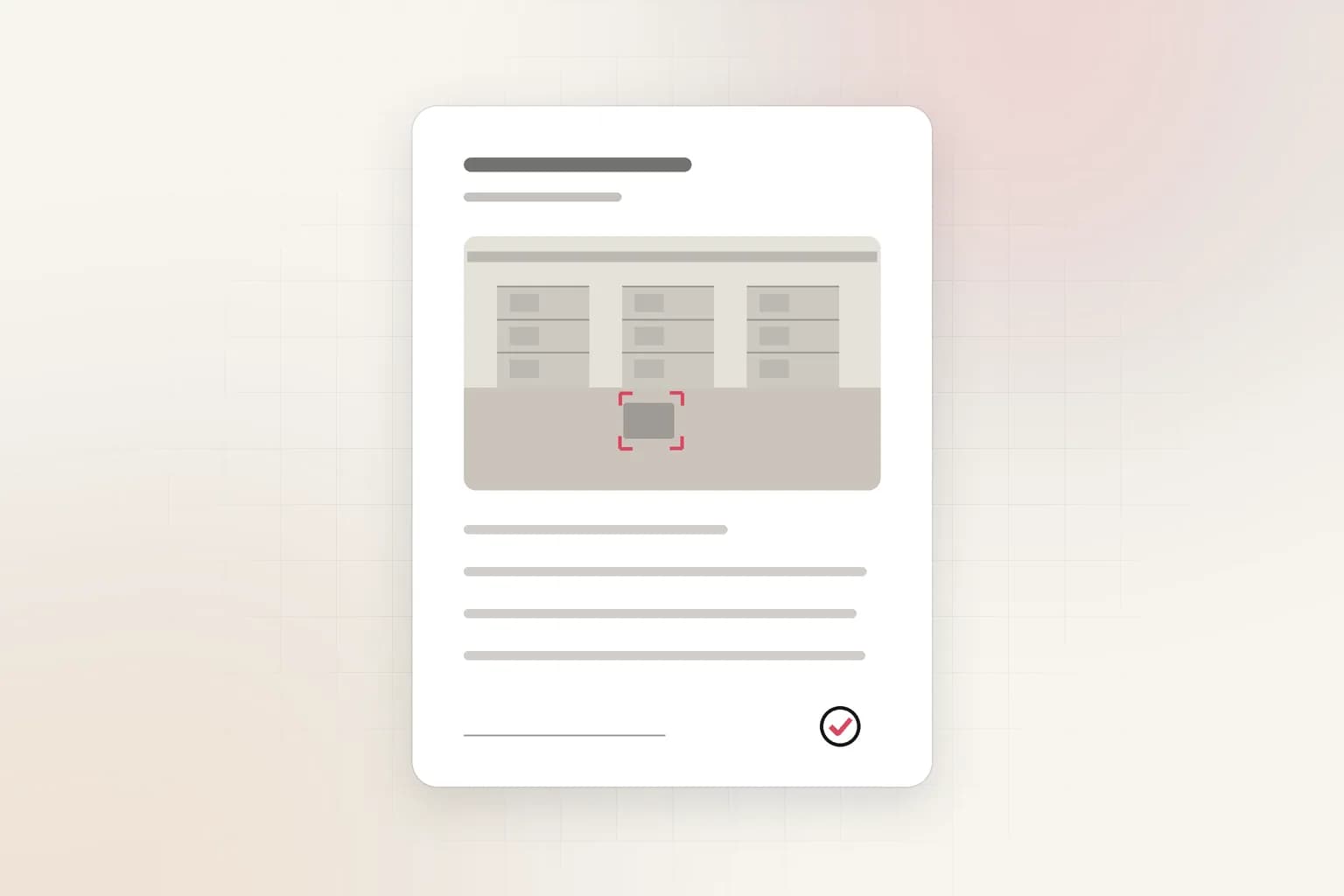
Starts from
A clip or an alert
Uploads or live camera alerts.
Drafted by AI
Timeline and details
You review and edit.
Export
PDF or Word
Ready for the case file.
How it works
From a question to an answer in minutes
Upload a clip
For footage you already have: an incident, a shift, a day on site.
- 01Attach a recording (MP4, MOV and most video formats, up to 2 GB) in the box at the top of this page or in a new dashboard chat.
- 02Send the prompt as it is, or change it: “Write a security incident report for this footage with a timeline and the people involved.”
- 03Get the answer with timestamps and frames, ask follow-ups, and export a report to PDF or Word.
Turn any camera alert into a report
Open an alert and choose Report: Ceptory drafts the details, asks for what it can't see, and builds the report.
- 01Open Alerts in the dashboard and pick the alert.
- 02Choose Report. Ceptory drafts the incident details from the frame and clip.
- 03Add the people at the scene and the actions taken; Ceptory fills in what it saw.
- 04Review the report and export it to PDF or Word.
What it finds
What AI Incident Reports picks up
Timeline
People at the scene
Actions taken
Evidence
Options
Built for real work
- Report types
- Security incident, safety observation, end of shift, construction daily, or your own prompt.
- Step by step
- The incident flow asks for what the camera can't know, such as names and actions.
- Export
- Formatted PDF or Word documents.
Every answer
What you get back
- Incident summary and classification
- Timeline with timestamps
- People involved and witnesses
- Actions taken and recommendations
- Frames from the footage as evidence
Use cases
Where teams use it
Compared
Doing it by hand vs. with Ceptory
Without Ceptory
- Rewatch the footage, take notes, type the report
- Timestamps and details copied by hand
- An hour or more per incident
With Ceptory
- Upload the clip or open the alert
- Timeline and details drafted from the video
- Review, edit and export in minutes
Good results
Tips for accurate results
- Always review the draft: the AI describes what's visible, and you add names and context.
- Use the incident report template tool if you need a blank form.
Cameras
Works with the cameras you have
Any IP camera or NVR with RTSP or ONVIF, a webcam, or a live stream from OBS, a drone or an encoder. Ceptory Edge runs on a mini PC, NAS or Raspberry Pi on the camera network; nothing is opened to the internet.
FAQ
AI Incident Reports: common questions
Can AI write an incident report from CCTV footage?
Yes. Upload the footage with the prompt on this page and Ceptory drafts a report with a timeline, people involved and recommended actions, using timestamps from the video. You review and edit it before exporting.
Can I make a report from a camera alert?
Yes. Open the alert and choose Report. Ceptory drafts the details from the alert's frame and clip and walks you through the rest.
What formats can I export?
PDF and Word.
Is the AI report accurate enough to submit?
Treat it as a strong first draft. It describes what the video shows; a person should check it and add names and context before it's submitted.
Related
More detection features
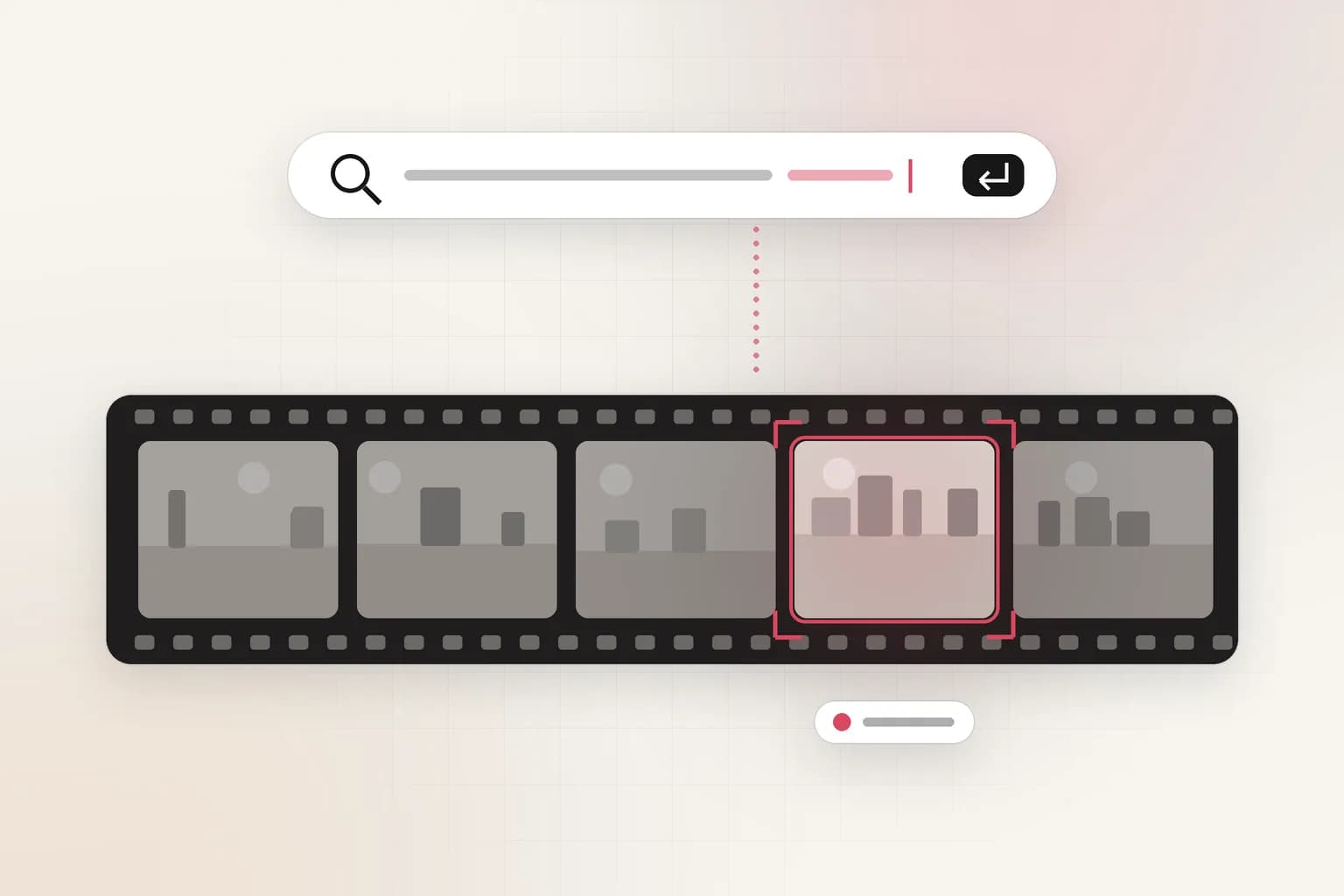
Search, reports & insights
CCTV Video Search
Search CCTV and recorded video in plain English: 'red truck at gate 2 after 10 PM'. Upload a clip or connect cameras and get the exact moments with timestamps.
See the feature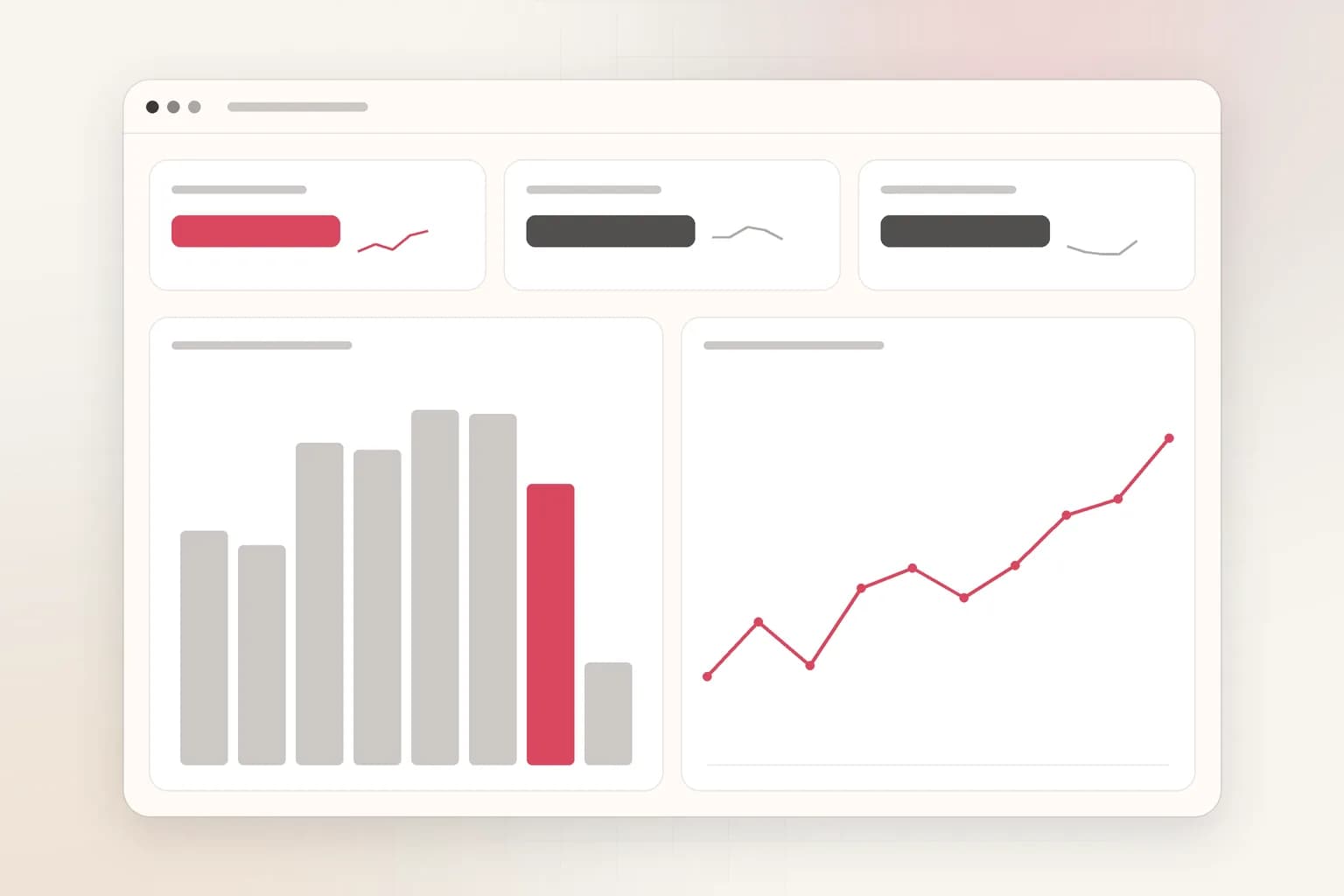
Search, reports & insights
CCTV Analytics Dashboard
One dashboard for every camera's alerts and trends: incidents by site, camera and hour, camera reports, and AI insights you can ask questions of. Free to start.
See the feature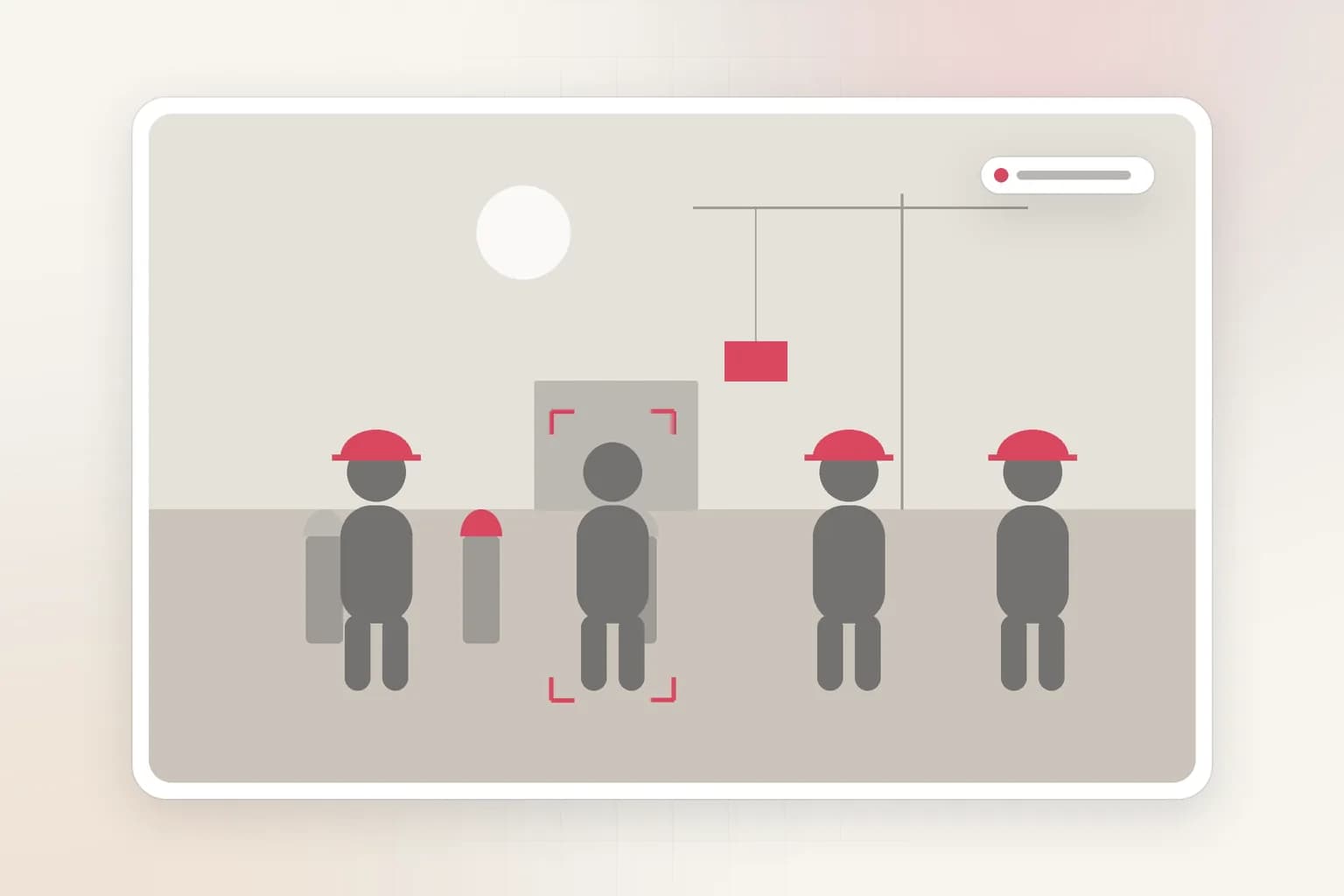
Workplace safety
PPE Detection
AI PPE detection for CCTV and recorded video. Check every worker for a hard hat, hi-vis vest and gloves, get alerts with the frame, and export safety reports.
See the feature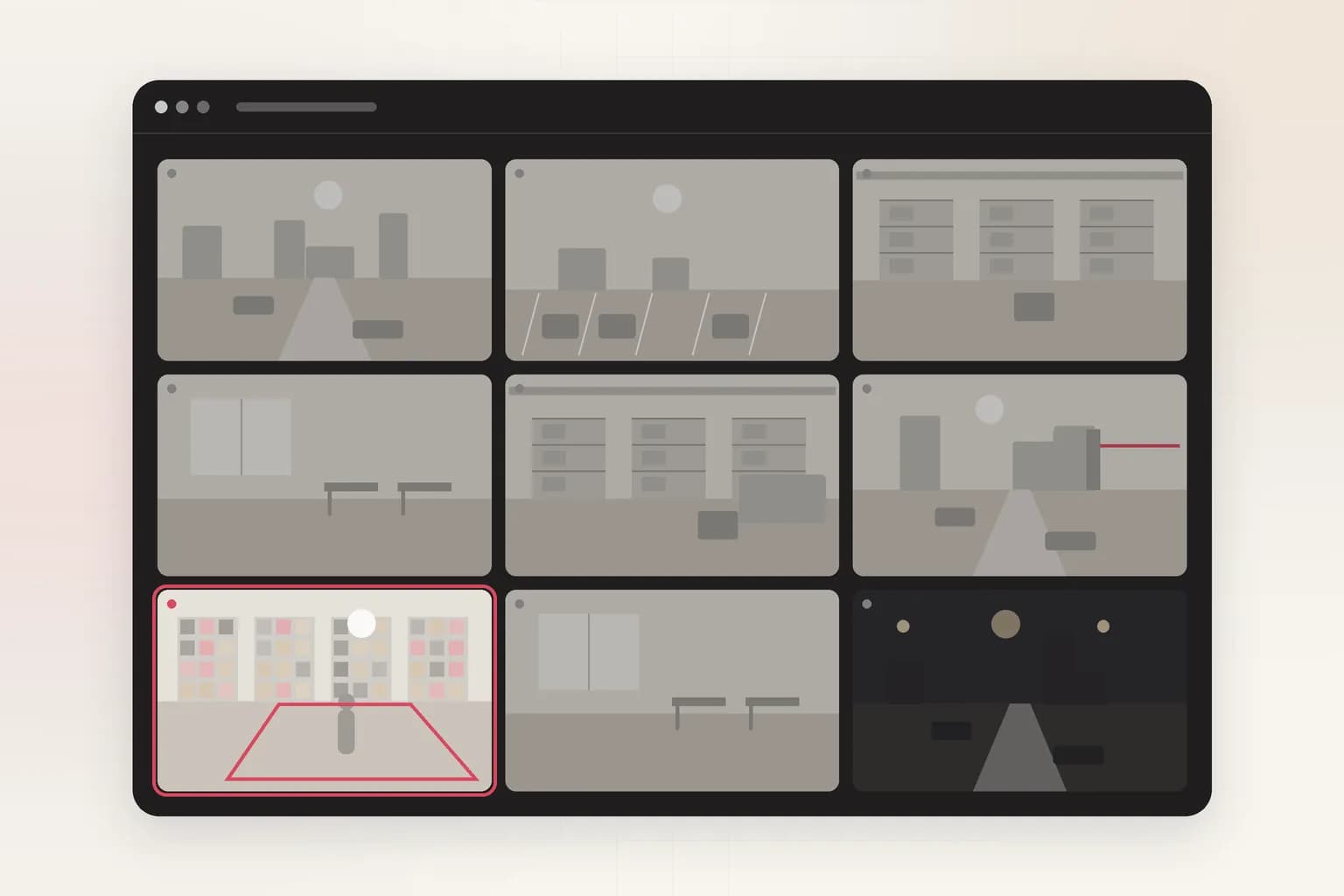
Security
Intrusion Detection
AI intrusion detection for existing cameras: alerts when a person, vehicle or animal enters a restricted area on your schedule, with the frame and clip.
See the feature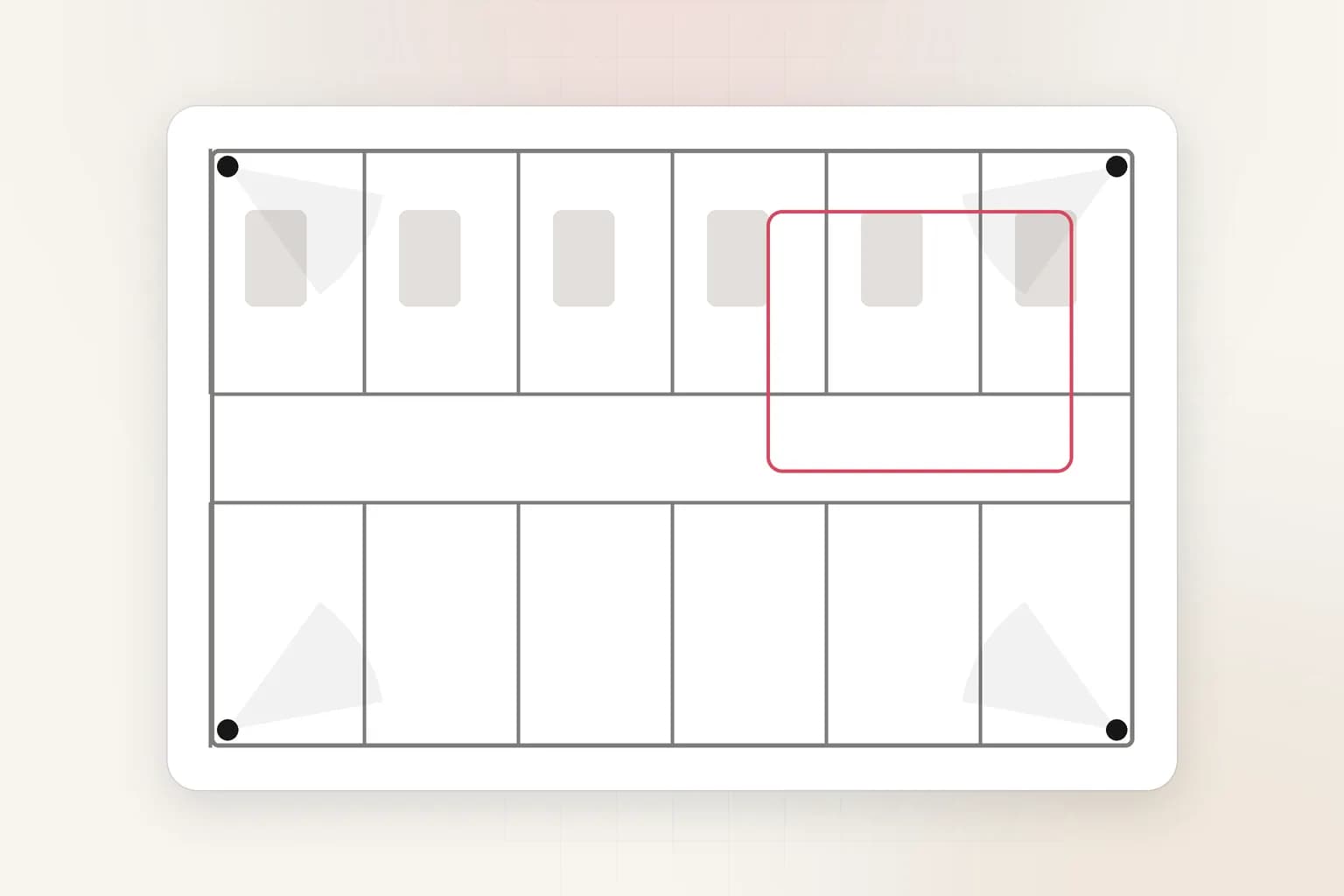
Workplace safety
Fall Detection
AI fall detection for existing cameras: alerts within seconds when someone falls or lies on the floor in care homes, warehouses and workplaces. Try it on a clip.
See the featureGet started
Try ai incident reports on your footage
Free to start. Upload a clip or run it on our example footage before you connect a single camera.