
Logistics & warehousing
How to write an end-of-shift report with AI from warehouse and dock cameras
Turn a shift of dock and yard footage into a handover report: arrivals and departures, handling events, exceptions, and what the next shift needs to know.
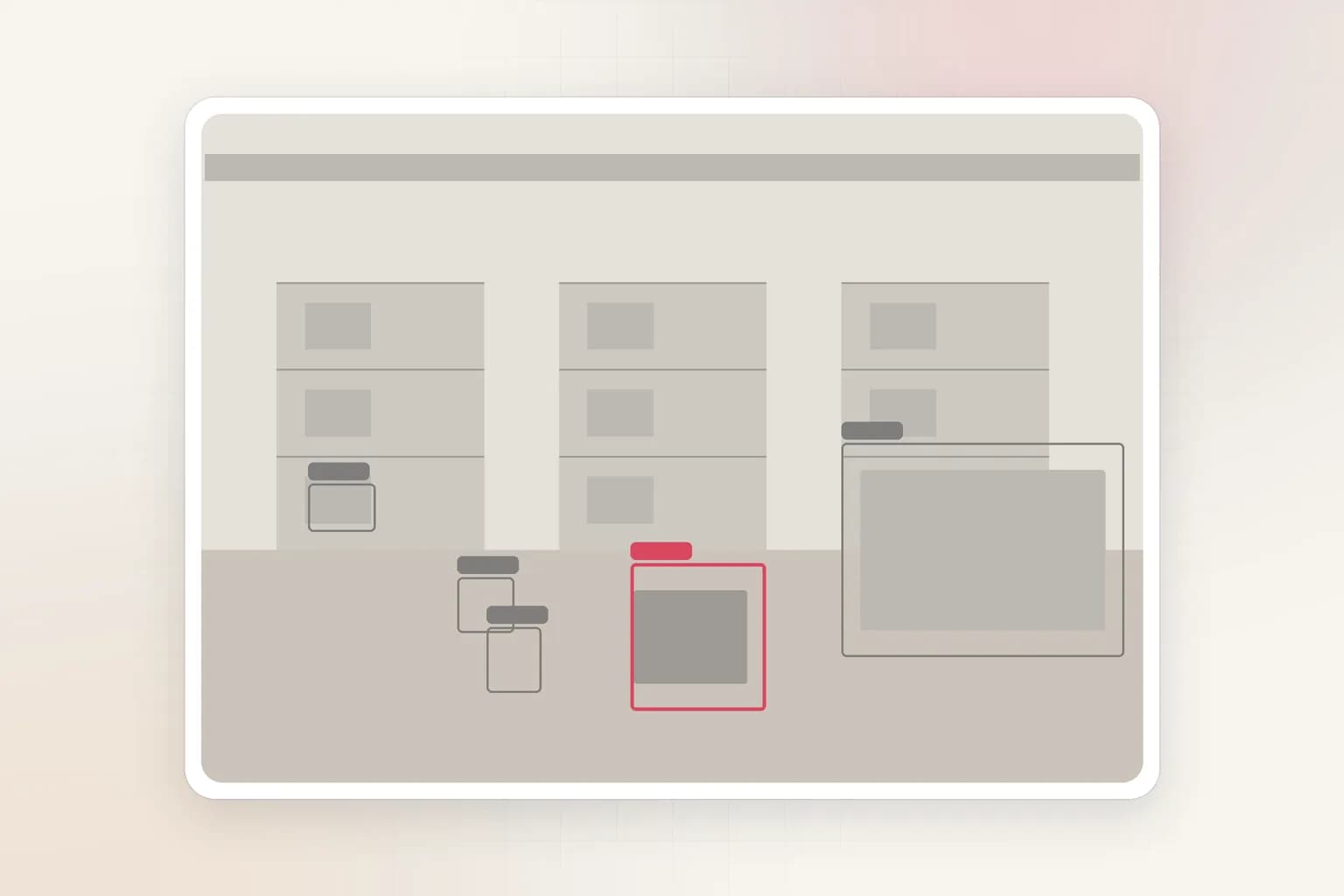
Quick answer: how to write an end-of-shift report with AI from warehouse and dock cameras
- 1.Create the "dock-operations" index. An index keeps this workflow's footage, searches and reports together.
- 2.Upload the footage. Upload one shift per file from dock door, yard approach and staging lane cameras.
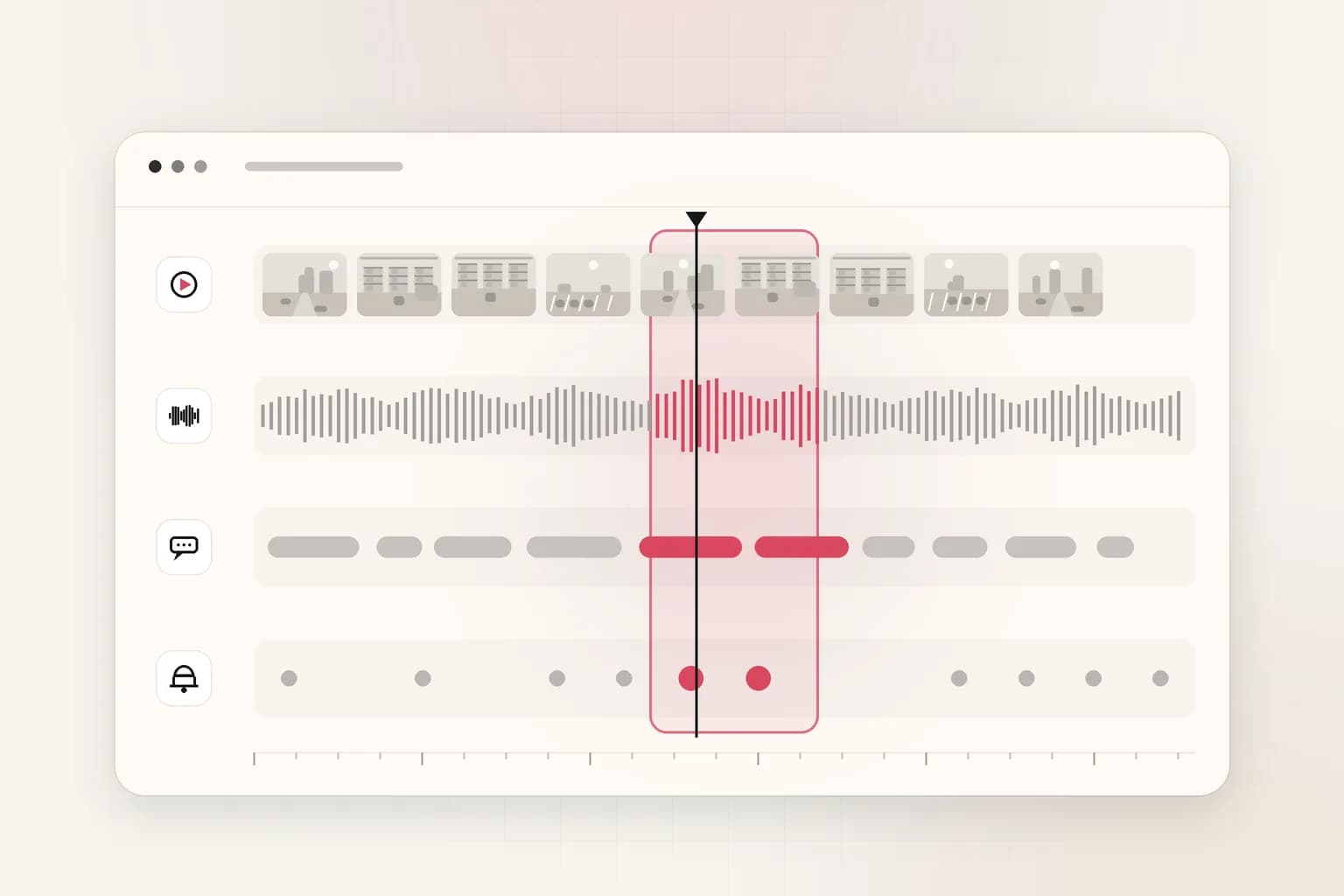
- 3.Let Ceptory index it. Scenes, objects, speech and on-screen text are mapped onto one timeline.
- 4.Find the moments in plain language. Search arrivals, handling problems and idle time separately, then check the matches on video.
- 5.Generate the end-of-shift report with AI. The prompt asks for a shift summary, arrivals and departures, handling events, exceptions, and handover notes.
- 6.Review, export and share. Post the report to the shift handover channel and link damage exceptions to the receiving record.
What you'll end up with
What to include in an end-of-shift report
A shift report with a summary, an arrivals and departures table, handling events, exceptions such as damage or idle time, and handover notes.
- 01Shift summaryVolume, flow, and anything unusual, in three sentences.
- 02Arrivals and departuresTime, dock door, and vehicle description.
- 03Handling eventsLoading and unloading activity by door.
- 04ExceptionsDamage, unsafe handling, idle equipment, open doors.
- 05Handover notesWhat the next shift should pick up.
Free template
End-of-shift report template and AI prompt
Copy the template to fill in by hand, or the prompt to have Ceptory write the report from your footage.
# End-of-shift report

Site / index: ____________   Period covered: ____________   Prepared by: ____________

## 1. Shift summary
Volume, flow, and anything unusual, in three sentences.

## 2. Arrivals and departures
Time, dock door, and vehicle description.

## 3. Handling events
Loading and unloading activity by door.

## 4. Exceptions
Damage, unsafe handling, idle equipment, open doors.

## 5. Handover notes
What the next shift should pick up.
You are a warehouse supervisor writing the end-of-shift handover report from dock and yard camera footage. Write:

1. Shift summary: three sentences on volume, flow, and anything unusual.
2. Arrivals and departures: a table with columns Time, Dock door or area, Vehicle description (type, color, trailer markings if visible), and Arrival or departure.
3. Handling events: loading and unloading activity by dock door, with timestamps.
4. Exceptions: damaged or dropped goods, unsafe handling, forklifts or trailers idle for a long time, doors left open.
5. Handover notes: what the next shift should check or finish.

Only include what is visible in the footage, and give a timestamp for every row.
Step by step
How to create an end-of-shift report with Ceptory
Step 1
Create the "dock-operations" index
- Open New → New index and name it dock-operations. The dashboard prefills the name when you start from the guide.
- Add a short description so teammates know what belongs in it: "Loading dock and yard camera footage, one shift per upload."
- Keep one index per workflow or site. Search and analysis run inside a single index, so mixing unrelated footage makes results noisier.
Tip: Already have footage indexed? Pick that index in the guide instead of creating a new one.
Step 2
Upload the footage
- Open New → Upload videos, choose the index, and drop in MP4, MOV or WebM files (4 seconds to 1 hour each, up to 2 GB per file).
- Upload one shift per file from dock door, yard approach and staging lane cameras.
- Keep the original file names. Camera names and timestamps in file names make the report easier to trace back to the source.
What to upload
- One shift per upload from cameras covering dock doors, the yard approach, and staging lanes.
- Cameras with a view of trailer doors and dock levelers, so loading and unloading are visible.
- Include the yard gate camera if you want arrival times.
Tip: Exporting from an NVR or VMS? Export the native resolution; Ceptory reads 360p to 4K.
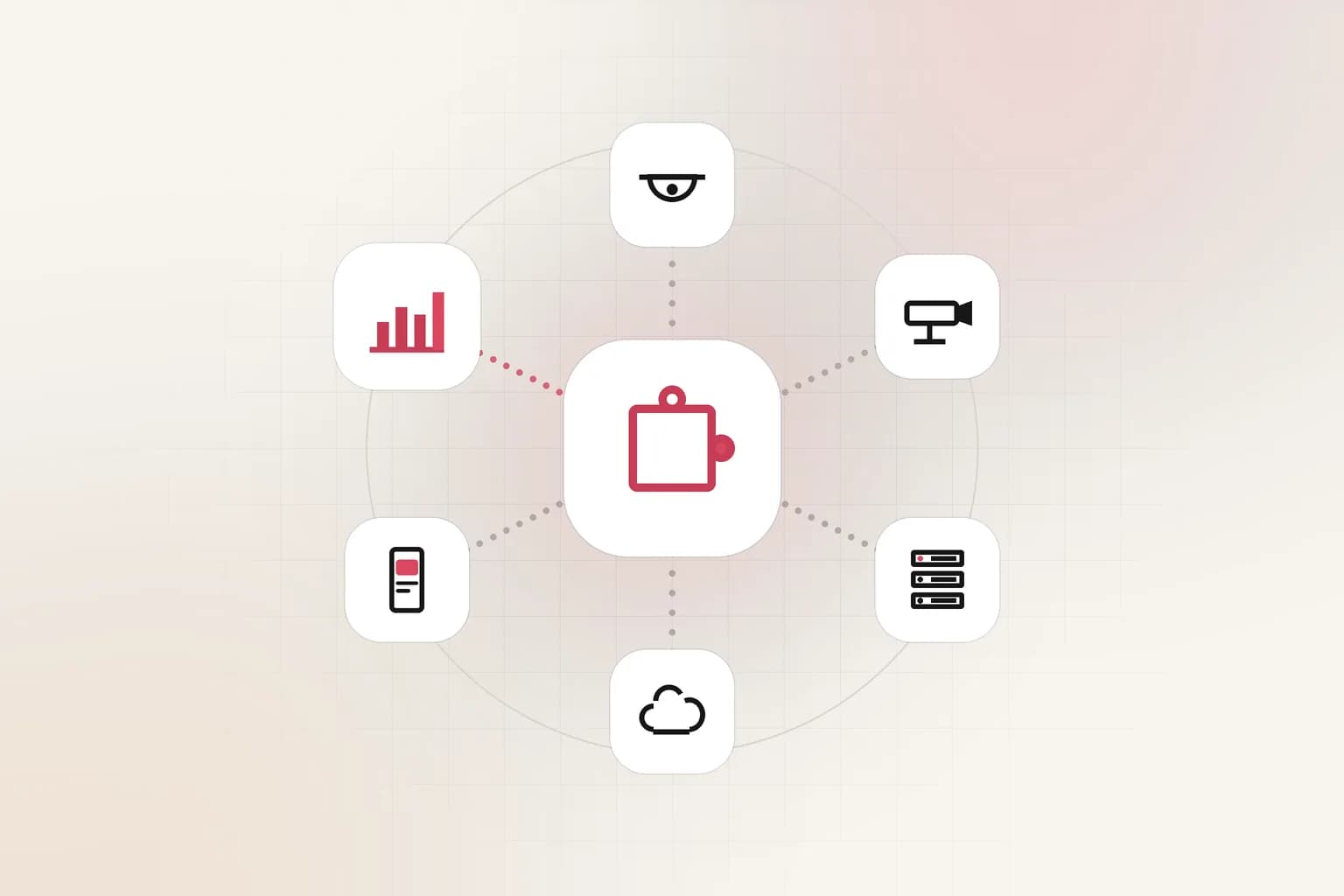
Step 3
Let Ceptory index it
- Each video moves from Uploading to Processing to Ready. Indexing usually takes a fraction of the video's running time.
- You can upload more files while earlier ones process. The guide checks this step off as soon as one video is ready.
- Indexed minutes count against your free allowance first, then your prepaid balance.
Step 4
Find the moments in plain language
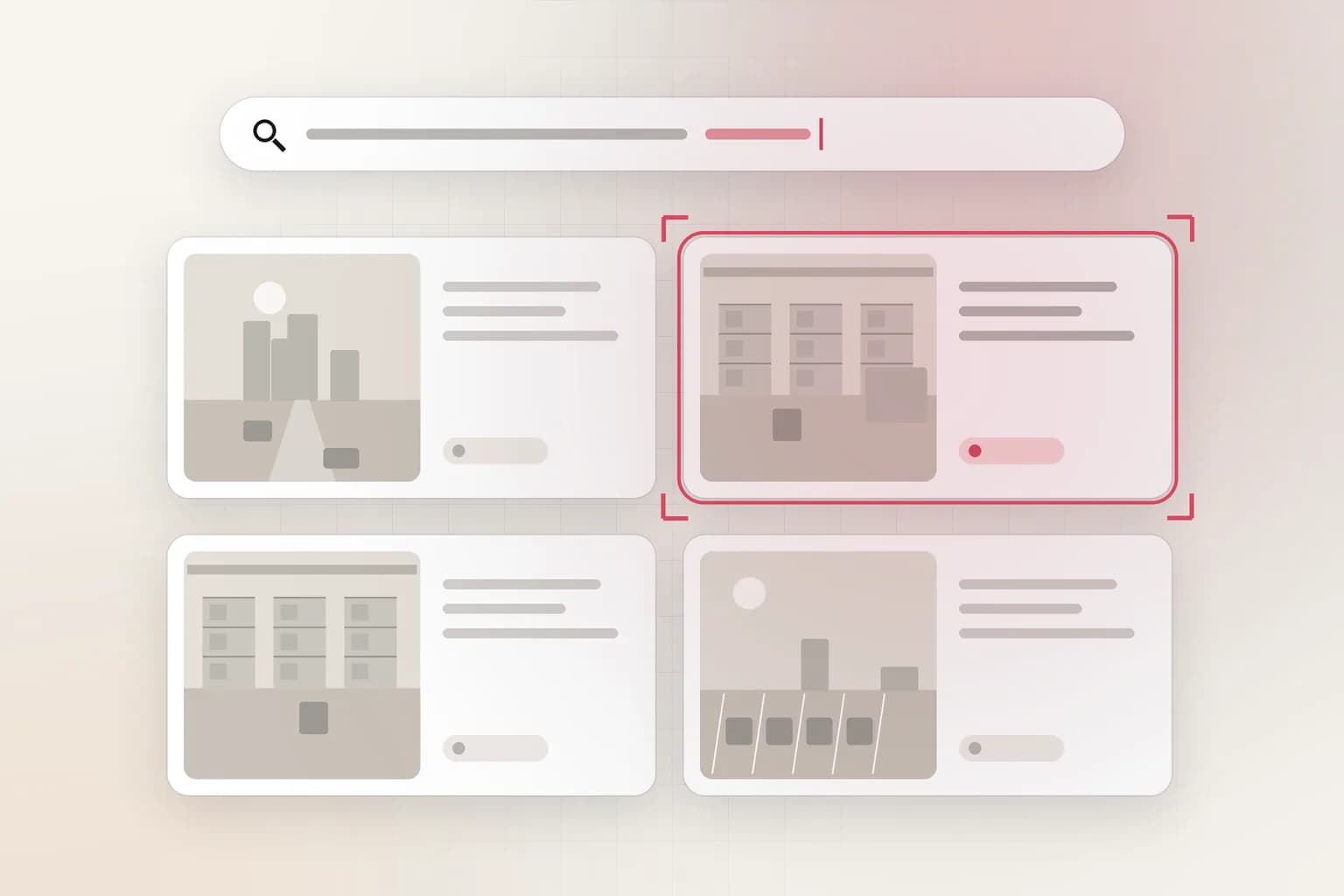
- Open the index's Search tab and describe what you're looking for the way you'd say it out loud. The guide pre-fills a starter query.
- Search arrivals, handling problems and idle time separately, then check the matches on video.
- Each result is a time range you can play on the spot. Note the timestamps of the moments that belong in the report.
Searches to start with
“truck backing into a dock door”“pallet dropped or damaged”“forklift idle for a long time”“trailer door left open with nobody around”Tip: Search by appearance and action ("person in a dark jacket carrying a box"), not by names or identities.
Step 5
Generate the end-of-shift report with AI
- Open the Analyze tab. The guide pre-fills a report prompt that asks for the exact sections below, in a fixed order.
- The prompt asks for a shift summary, arrivals and departures, handling events, exceptions, and handover notes.
- Analyze runs on the most recently processed video in the index, so run it once per clip that matters, or upload one combined export of the window you care about.
Tip: Edit the prompt freely: add your site name, shift times, or the format your team already files.
Step 6
Review, export and share
- Read the report against the clips. AI output is a draft for a person to confirm, never a final finding.
- Post the report to the shift handover channel and link damage exceptions to the receiving record.
- Use Copy to paste into email or a ticket, or Download to save a Markdown file you can attach or convert to PDF.
- To run this on a schedule, call POST /api/v1/indexes/{indexId}/analyze with the same prompt from your own scripts.
Why use AI
Writing it by hand vs. with Ceptory
The report is the same. What changes is who watches the footage.
| By hand | With Ceptory | |
|---|---|---|
| Finding the moments | Scrub every camera at speed | Search in plain language across all of it |
| Timestamps | Noted by hand as you watch | Attached to every result and report row |
| First draft | Typed from your notes | Written from the footage in the format you set |
| Consistency | Varies by who writes it | Same prompt, same sections, every time |
| Your role | Watch, note, write, check | Check and sign off |
From the field
Tips that make the report better
- Name uploads by date and shift (2026-10-22-night) so reports line up with your WMS records.
- Use the exceptions table as the agenda for the next morning's stand-up.
- If a damage claim follows, export the matching clip from the original camera, not a screen recording.
- Logistics & supply chainCCTV bandwidth calculator
FAQ
End-of-shift report: common questions
What goes in an end-of-shift report?
Work completed, what is still open, exceptions such as damage or safety issues, equipment status, and notes for the next crew. The guide's prompt builds each of those from the footage, with a timestamp per row.
Can this replace our dock scheduling data?
No. It adds what the schedule cannot see: what actually happened at each door, and the exceptions worth following up.
Can it read license plates or trailer numbers?
Only when they are clearly legible in the frame. The prompt asks for visible markings and leaves the field blank otherwise.
How do I compare shifts?
Keep one index for the site, upload each shift, and run the same prompt so the tables have the same columns every time.
More guides
Other reports teams create with Ceptory
Security & investigations
How to write a security incident report with AI, straight from CCTV footage
Read the guide
Security monitoring
How to monitor CCTV footage with AI: review a day of cameras in minutes
Read the guide
Operations & safety
How to create a safety observation report from video with AI
Read the guideGet started
Create your first end-of-shift report free
Sign up, follow this guide in your dashboard, and index 10 minutes of your own footage free.