
Media & archives
How to log video footage with AI: a timecoded shot log and highlights
Log long recordings such as matches, events, interviews and webinars without scrubbing: get a timecoded shot log, pull quotes, and the highlights your editors can cut from.
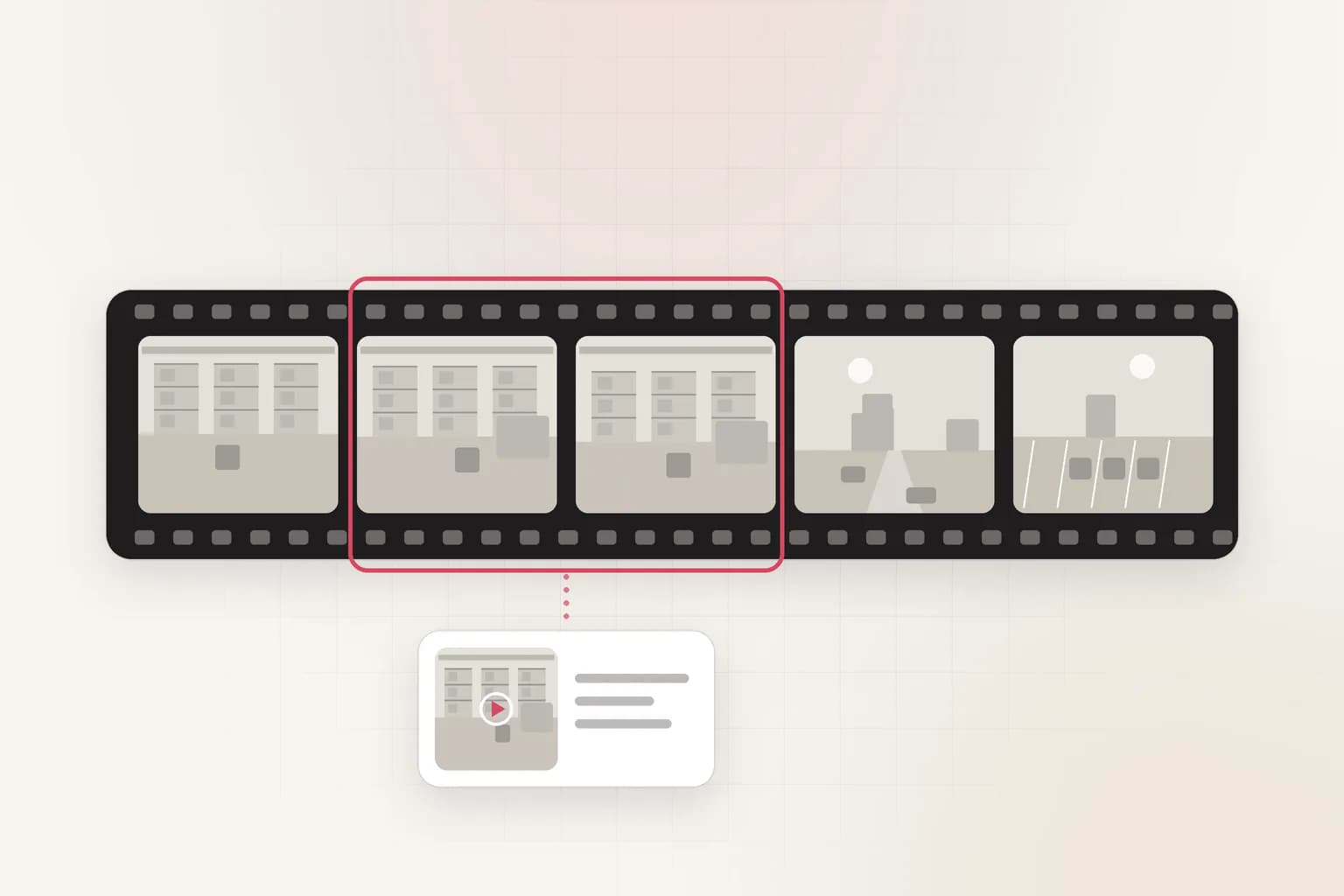
Quick answer: how to log video footage with AI: a timecoded shot log and highlights
- 1.Create the "archive-highlights" index. An index keeps this workflow's footage, searches and reports together.
- 2.Upload the footage. Upload full recordings, the program feed first, with clean audio where you have it.
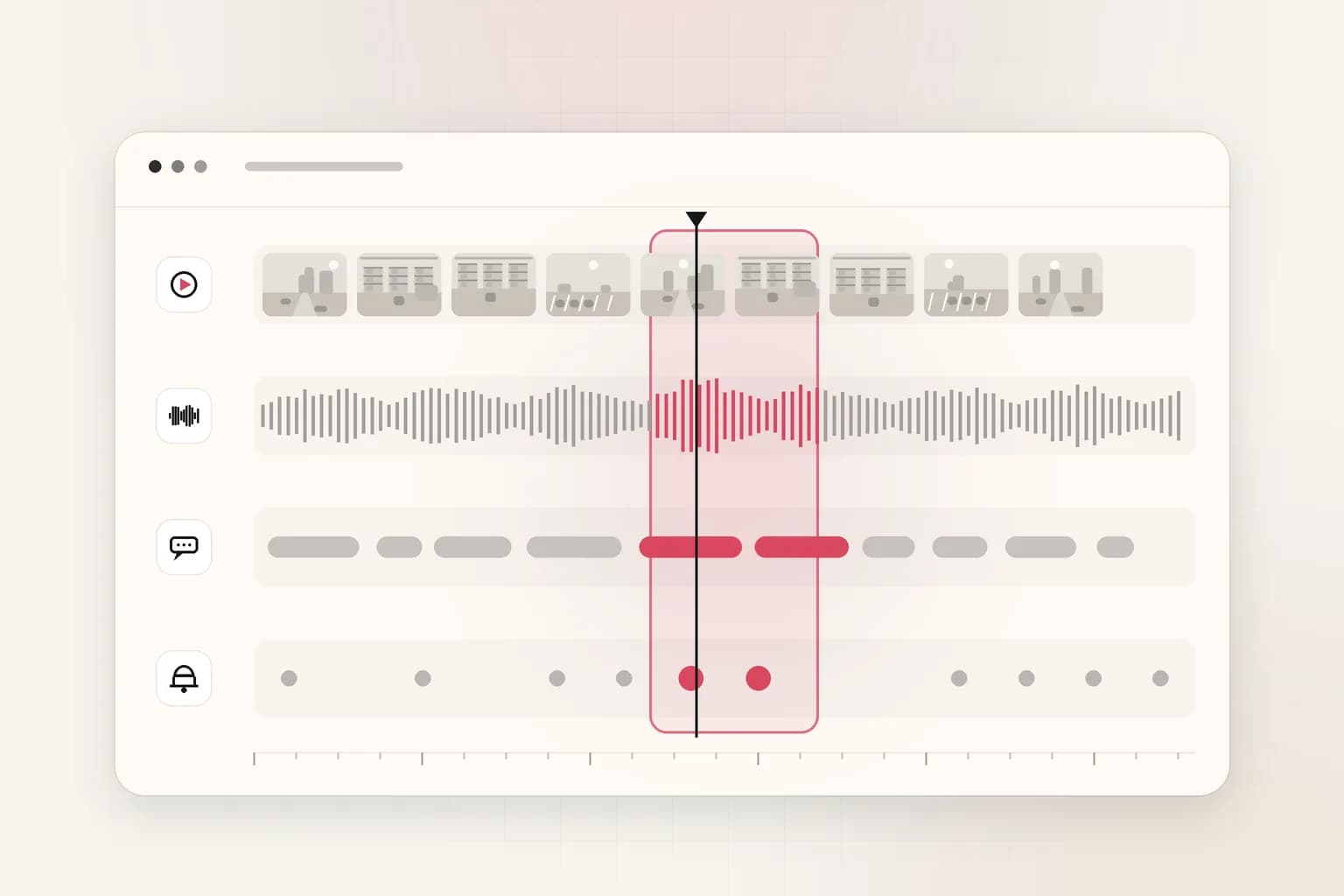
- 3.Let Ceptory index it. Scenes, objects, speech and on-screen text are mapped onto one timeline.
- 4.Find the moments in plain language. Search reactions, key visuals and spoken lines; spoken-phrase search finds quotes fast.
- 5.Generate the video log with AI. The prompt asks for a timecoded shot log, a ranked top five, pull quotes, a 60-second cut order, and archive tags.
- 6.Review, export and share. Hand the log to your editor and paste the 60-second cut order into the edit decision notes.
What you'll end up with
What to include in a video log
A highlight log with timecodes in and out, titles and descriptions, the top five moments ranked, quotes worth pulling, and a suggested 60-second cut order.
- 01Shot logTimecode in and out, title, description, suggested use.
- 02Top five momentsRanked, with one line on why each works.
- 03QuotesLines worth pulling, verbatim, with timecodes.
- 0460-second cutA suggested order for a short highlight edit.
- 05TagsPeople roles, topics and settings for the archive.
Free template
Video log template and AI prompt
Copy the template to fill in by hand, or the prompt to have Ceptory write the report from your footage.
# Video log

Site / index: ____________   Period covered: ____________   Prepared by: ____________

## 1. Shot log
Timecode in and out, title, description, suggested use.

## 2. Top five moments
Ranked, with one line on why each works.

## 3. Quotes
Lines worth pulling, verbatim, with timecodes.

## 4. 60-second cut
A suggested order for a short highlight edit.

## 5. Tags
People roles, topics and settings for the archive.
You are an assistant editor logging this recording. Write:

1. Shot log: a table with columns Timecode in, Timecode out, Title (five words or fewer), Description, and Suggested use (social clip, trailer, recap, archive only).
2. Top five moments, ranked, with one line on why each works.
3. Quotes worth pulling: verbatim lines with timecodes.
4. A suggested order for a 60-second highlight cut, listing the timecodes to use.
5. Tags for the archive: topics, settings, and the roles of people on screen (host, speaker, player), without names unless they are spoken or shown on screen.

Keep timecodes as HH:MM:SS and keep every clip between 5 and 30 seconds.
Step by step
How to create a video log with Ceptory
Step 1
Create the "archive-highlights" index
- Open New → New index and name it archive-highlights. The dashboard prefills the name when you start from the guide.
- Add a short description so teammates know what belongs in it: "Long-form recordings (events, matches, talks) to mine for highlights."
- Keep one index per workflow or site. Search and analysis run inside a single index, so mixing unrelated footage makes results noisier.
Tip: Already have footage indexed? Pick that index in the guide instead of creating a new one.
Step 2
Upload the footage
- Open New → Upload videos, choose the index, and drop in MP4, MOV or WebM files (4 seconds to 1 hour each, up to 2 GB per file).
- Upload full recordings, the program feed first, with clean audio where you have it.
- Keep the original file names. Camera names and timestamps in file names make the report easier to trace back to the source.
What to upload
- Full recordings rather than pre-cut clips, so nothing is lost before search.
- The program feed or main camera; add isolated cameras as separate uploads if you have them.
- Recordings with clean audio make spoken-quote search far more useful.
Tip: Exporting from an NVR or VMS? Export the native resolution; Ceptory reads 360p to 4K.
Step 3
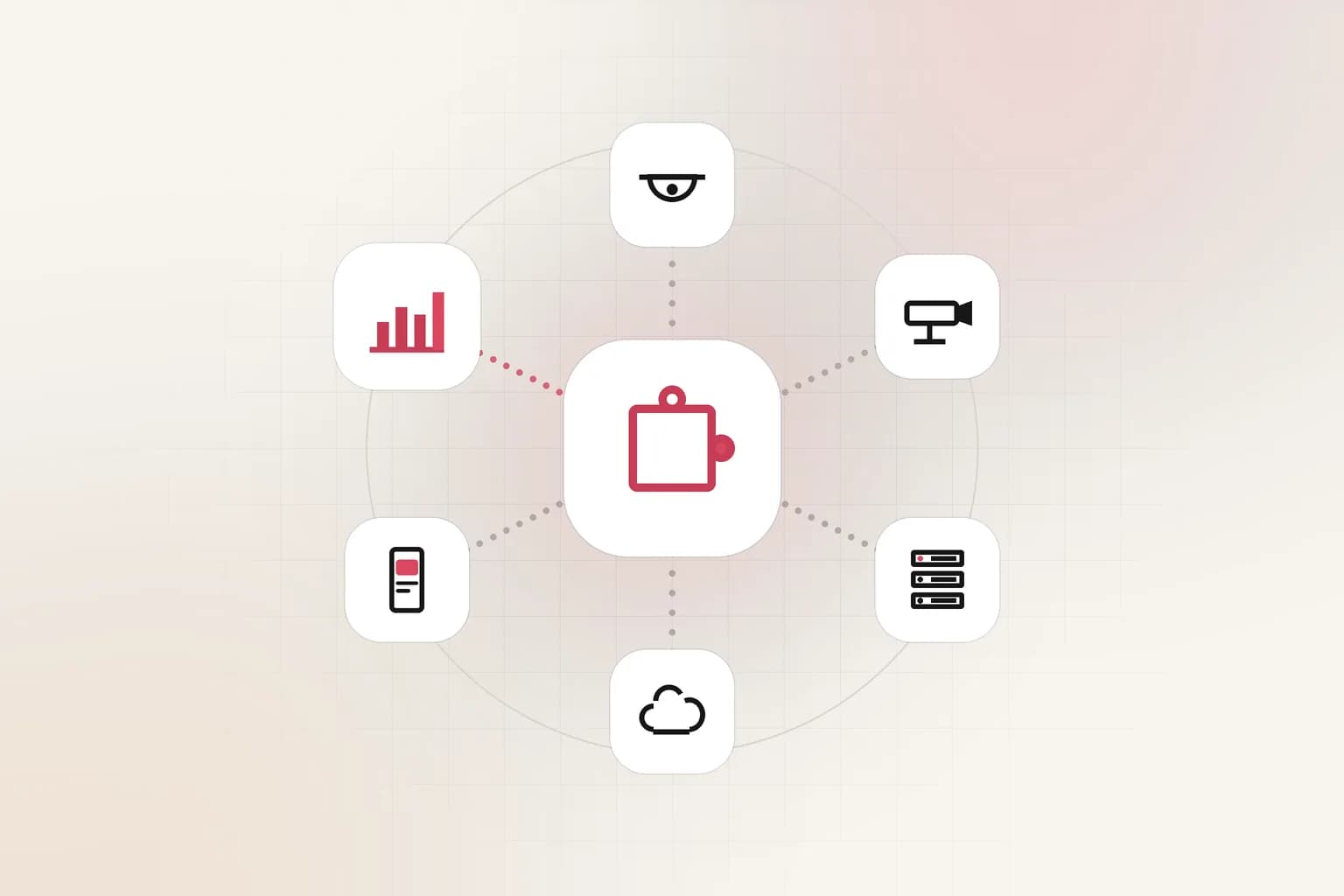
Let Ceptory index it
- Each video moves from Uploading to Processing to Ready. Indexing usually takes a fraction of the video's running time.
- You can upload more files while earlier ones process. The guide checks this step off as soon as one video is ready.
- Indexed minutes count against your free allowance first, then your prepaid balance.
Step 4
Find the moments in plain language
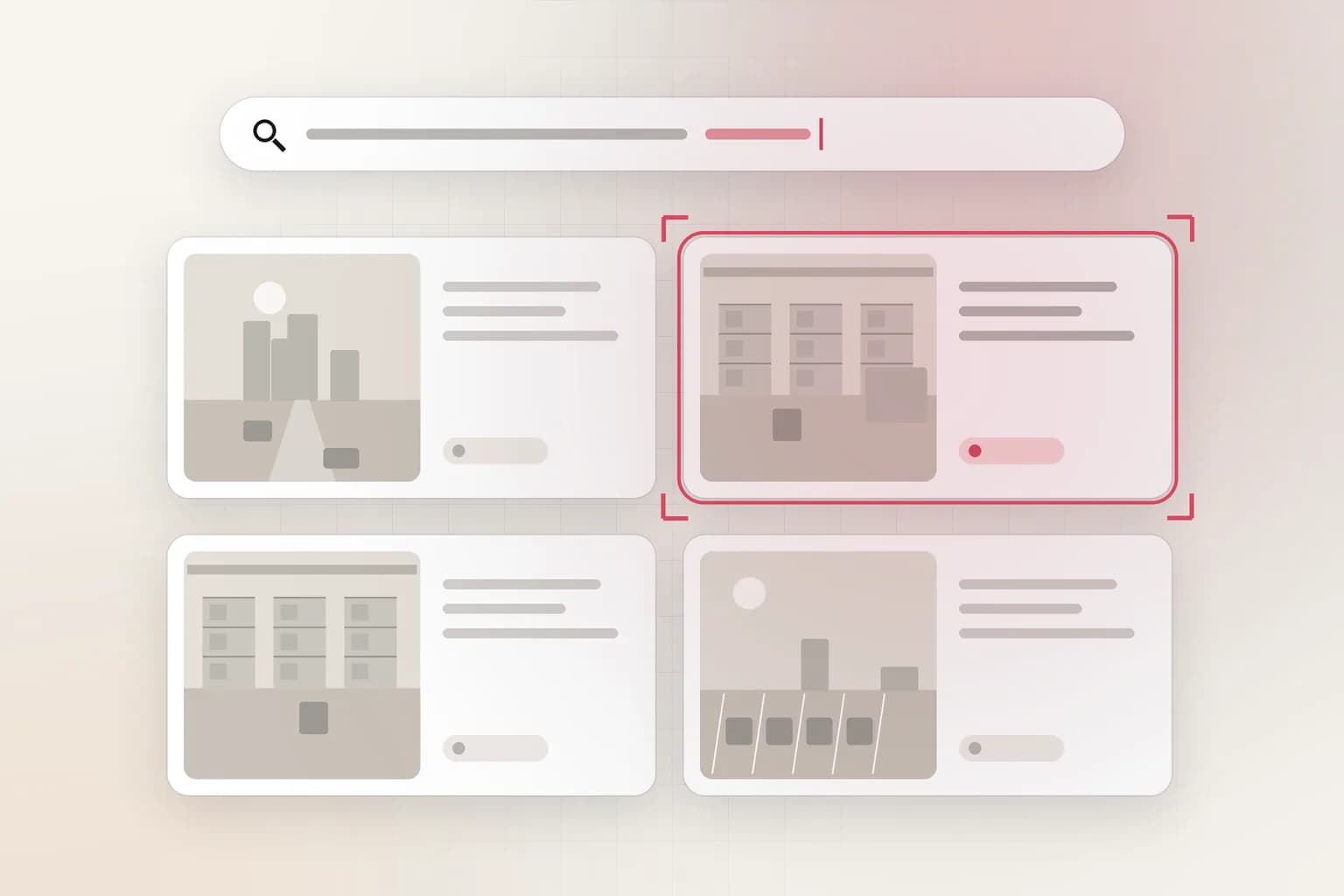
- Open the index's Search tab and describe what you're looking for the way you'd say it out loud. The guide pre-fills a starter query.
- Search reactions, key visuals and spoken lines; spoken-phrase search finds quotes fast.
- Each result is a time range you can play on the spot. Note the timestamps of the moments that belong in the report.
Searches to start with
“crowd cheering and standing up”“speaker on stage holding a microphone”“close-up of the product being demonstrated”“someone says thank you everyone”Tip: Search by appearance and action ("person in a dark jacket carrying a box"), not by names or identities.
Step 5
Generate the video log with AI
- Open the Analyze tab. The guide pre-fills a report prompt that asks for the exact sections below, in a fixed order.
- The prompt asks for a timecoded shot log, a ranked top five, pull quotes, a 60-second cut order, and archive tags.
- Analyze runs on the most recently processed video in the index, so run it once per clip that matters, or upload one combined export of the window you care about.
Tip: Edit the prompt freely: add your site name, shift times, or the format your team already files.
Step 6
Review, export and share
- Read the report against the clips. AI output is a draft for a person to confirm, never a final finding.
- Hand the log to your editor and paste the 60-second cut order into the edit decision notes.
- Use Copy to paste into email or a ticket, or Download to save a Markdown file you can attach or convert to PDF.
- To run this on a schedule, call POST /api/v1/indexes/{indexId}/analyze with the same prompt from your own scripts.
Why use AI
Writing it by hand vs. with Ceptory
The report is the same. What changes is who watches the footage.
| By hand | With Ceptory | |
|---|---|---|
| Finding the moments | Scrub every camera at speed | Search in plain language across all of it |
| Timestamps | Noted by hand as you watch | Attached to every result and report row |
| First draft | Typed from your notes | Written from the footage in the format you set |
| Consistency | Varies by who writes it | Same prompt, same sections, every time |
| Your role | Watch, note, write, check | Check and sign off |
From the field
Tips that make the report better
- Ask for clip lengths that match where they'll run: 6–15 seconds for social, 20–30 for recaps.
- Search the reaction, not the event: crowds and faces often mark the best moments.
- Keep the archive tags consistent across recordings so next year's search finds them.
- Media & entertainmentTimecode calculator
FAQ
Video log: common questions
What is video logging?
Writing down what happens in footage and when: a shot log with timecodes, descriptions and notable quotes, so editors can find material without watching everything again.
Does Ceptory cut the clips for me?
Ceptory finds and logs the moments with timecodes and plays them back. Your editor cuts the final clips in their editing tool using the log.
Can it find spoken quotes?
Yes. Speech is indexed with the visuals, so you can search for a phrase and the analysis can pull lines verbatim with timecodes.
How long can a recording be?
Each upload can run up to an hour. Split longer events into parts; they stay searchable together in the same index.
More guides
Other reports teams create with Ceptory
Security & investigations
How to write a security incident report with AI, straight from CCTV footage
Read the guide
Security monitoring
How to monitor CCTV footage with AI: review a day of cameras in minutes
Read the guide
Operations & safety
How to create a safety observation report from video with AI
Read the guideGet started
Create your first video log free
Sign up, follow this guide in your dashboard, and index 10 minutes of your own footage free.