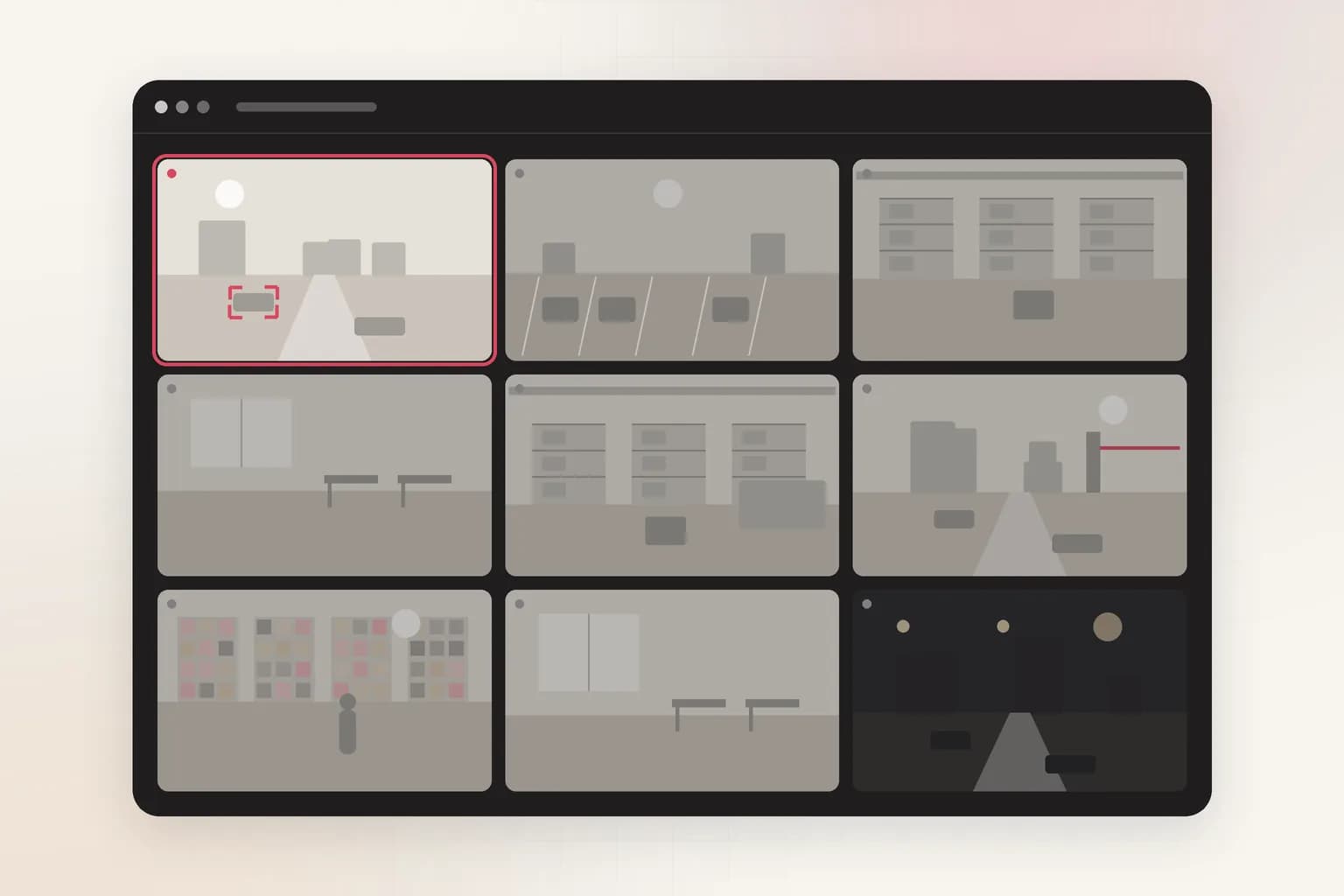
Security
Face Recognition Access Control with Your CCTV
Add your staff list and a watchlist, draw the restricted area, and Ceptory matches every face that enters it. You get an alert when someone on the watchlist appears or when a person who isn't staff walks into a staff-only zone.
Attach a clip and send. The task is filled in; change it to anything you need.
Lists
Staff and watchlist
A photo per person.
Live check
Every 3 s
When there is movement in view.
Alerts on
Watchlist and unknown
Watchlist matches alert at any hour.
How it works
Check a clip in minutes, or watch cameras around the clock
Upload a clip
For footage you already have: an incident, a shift, a day on site.
- 01Attach a recording (MP4, MOV and most video formats, up to 2 GB) in the box at the top of this page or in a new dashboard chat.
- 02Send the prompt as it is, or change it: “How many different people walk through the lobby in this clip?”
- 03Get the answer with timestamps and frames, ask follow-ups, and export a report to PDF or Word.
Know who walks into restricted areas
Upload staff and watchlist photos, draw the area, and Ceptory checks faces every 3 seconds when there's movement.
- 01Open Cameras and choose Connect a camera. Face access is already picked when you come from this page.
- 02Choose the source: a webcam on this computer, an IP camera or NVR (RTSP or ONVIF, through Ceptory Edge or the desktop app), a live stream pushed from OBS, a drone or an encoder, or one of our example videos.
- 03Draw the area to watch: the restricted area, such as a server room door, a staff-only corridor or a pharmacy store.
- 04Set the rules: your staff list and watchlist (a photo per person), whether to alert on people who aren't staff, whether to alert when a face can't be seen, and when to watch.
- 05Choose where alerts go and how long a clip to keep, then save. The camera starts watching straight away.
What it finds
What Face Recognition Access picks up
Watchlist matches
People who aren't staff
Faces that can't be checked
Every entry, logged
Rules you control
Set it up for your site
- Staff list and watchlist
- Add people with a photo; you can manage lists from the camera at any time.
- Alert on unknown people
- On by default: anyone not on the staff list raises an alert. Watchlist matches always alert.
- Alert when a face can't be seen
- On by default; turn off for busy doors where people often face away.
- Schedule and match strictness
- Watch always or between set hours; a match threshold controls how close a face must be.
Every alert
What each alert includes
- The frame that triggered it, with the person, object or vehicle boxed
- A 10, 20 or 30 second clip around the moment (half before, half after), if you turn clips on
- Camera name, site, time and the rule that fired
- Delivery to Slack, Microsoft Teams, Discord, email or a signed webhook, plus push to the Ceptory phone app and an optional alarm on the monitoring desk
- One click to turn the alert into a full incident report you can export to PDF or Word
Use cases
Where teams use it
Server rooms and labs
Only named staff should be at the door; anyone else raises an alert.
Warehouses
Staff-only zones such as high-value cages and dispatch areas.
Compared
Doing it by hand vs. with Ceptory
Without Ceptory
- Badge systems can't tell who is holding the badge
- Tailgaters walk in behind staff
- Checking who entered means scrolling through footage
With Ceptory
- Matches the face of whoever actually walks in
- Unknown people in staff zones raise an alert
- Every match logged with its frame
Good results
Tips for accurate results
- Face recognition needs a clear, front-on face: mount cameras at head height facing the door, not high in a corner.
- Use clear, well-lit photos for your lists.
- Check the face recognition laws where you operate (GDPR, BIPA, DPDP and others) and tell people the area is monitored.
Cameras
Works with the cameras you have
Any IP camera or NVR with RTSP or ONVIF, a webcam, or a live stream from OBS, a drone or an encoder. Ceptory Edge runs on a mini PC, NAS or Raspberry Pi on the camera network; nothing is opened to the internet.
FAQ
Face Recognition Access: common questions
How does face recognition access control work in Ceptory?
You add a staff list and a watchlist with a photo per person and draw the restricted area on a camera. Ceptory finds faces in that area every 3 seconds when there's movement, compares them to your lists, and alerts on watchlist matches and, if you choose, on anyone who isn't staff.
Do I need special face recognition cameras?
No. Ordinary IP cameras work, as long as the camera sees faces clearly: at head height, facing the entrance, with decent light.
What happens if someone hides their face?
If 'alert when a face can't be seen' is on, a person in the zone whose face can't be checked raises an alert too. You can turn it off for busy doors.
Is face recognition legal for my business?
It depends on where you operate. Many places require notice, a lawful basis or consent (for example GDPR in Europe, BIPA in Illinois and the DPDP Act in India). Use face access only where you need it and check local rules.
Can I run face matching on a recording?
For recordings, upload the clip and ask Ceptory to list and describe everyone who enters with timestamps; live face matching against your lists runs on connected cameras.
Related
More detection features
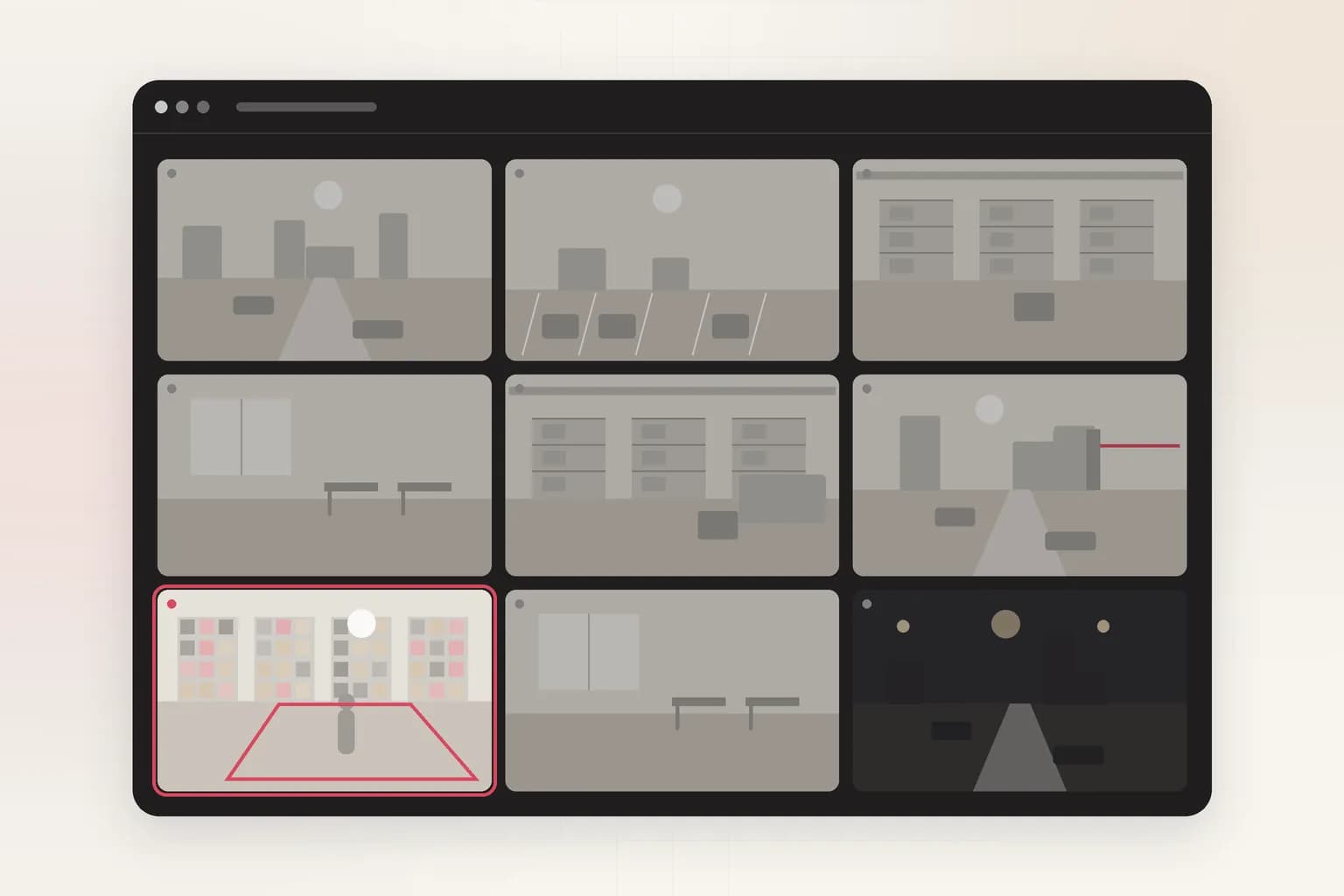
Security
Intrusion Detection
AI intrusion detection for existing cameras: alerts when a person, vehicle or animal enters a restricted area on your schedule, with the frame and clip.
See the feature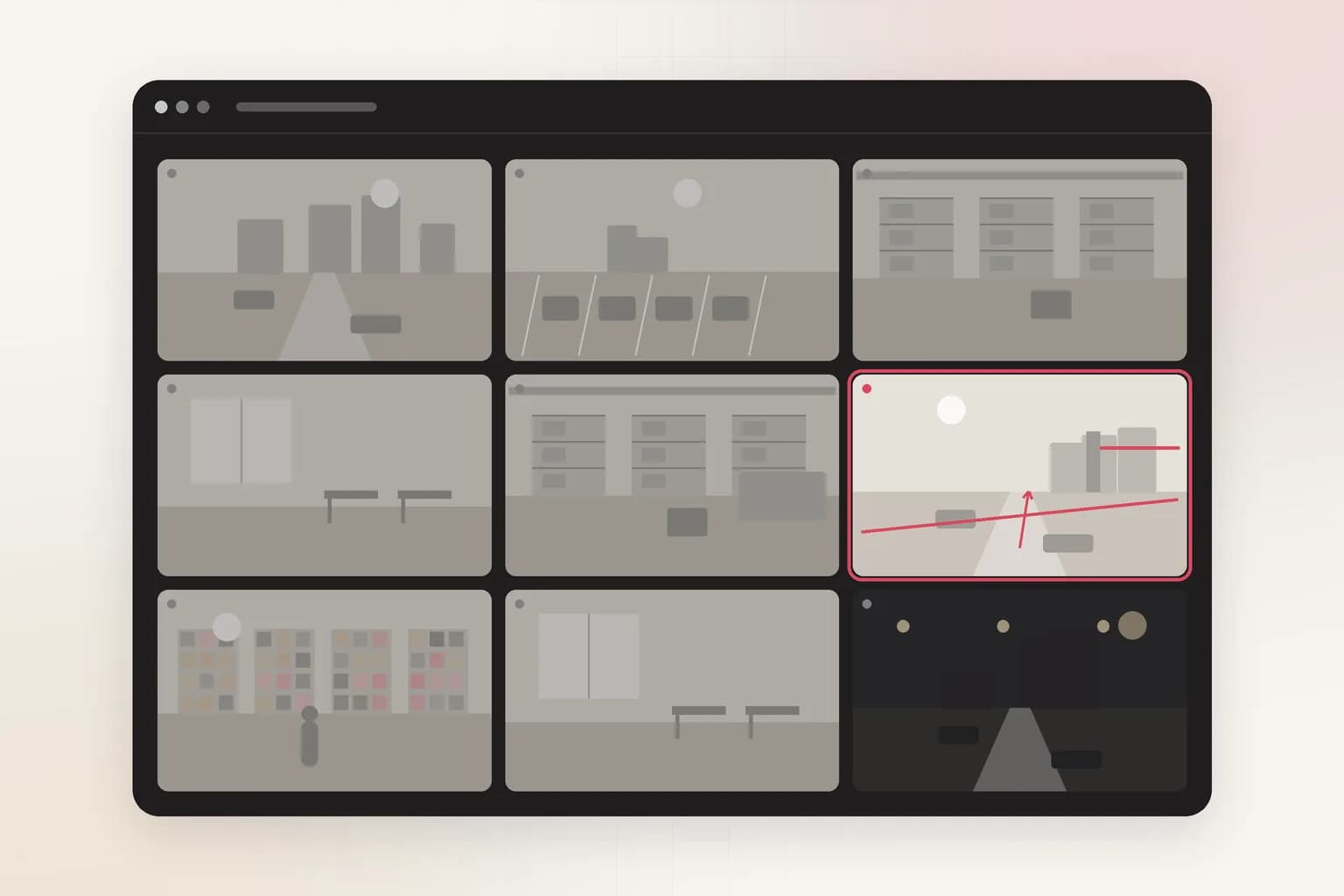
Security
Loitering Detection
Loitering detection for existing CCTV: an alert when someone stays in an area longer than you allow, at entrances, ATMs, car parks and stores. Try it on a clip.
See the feature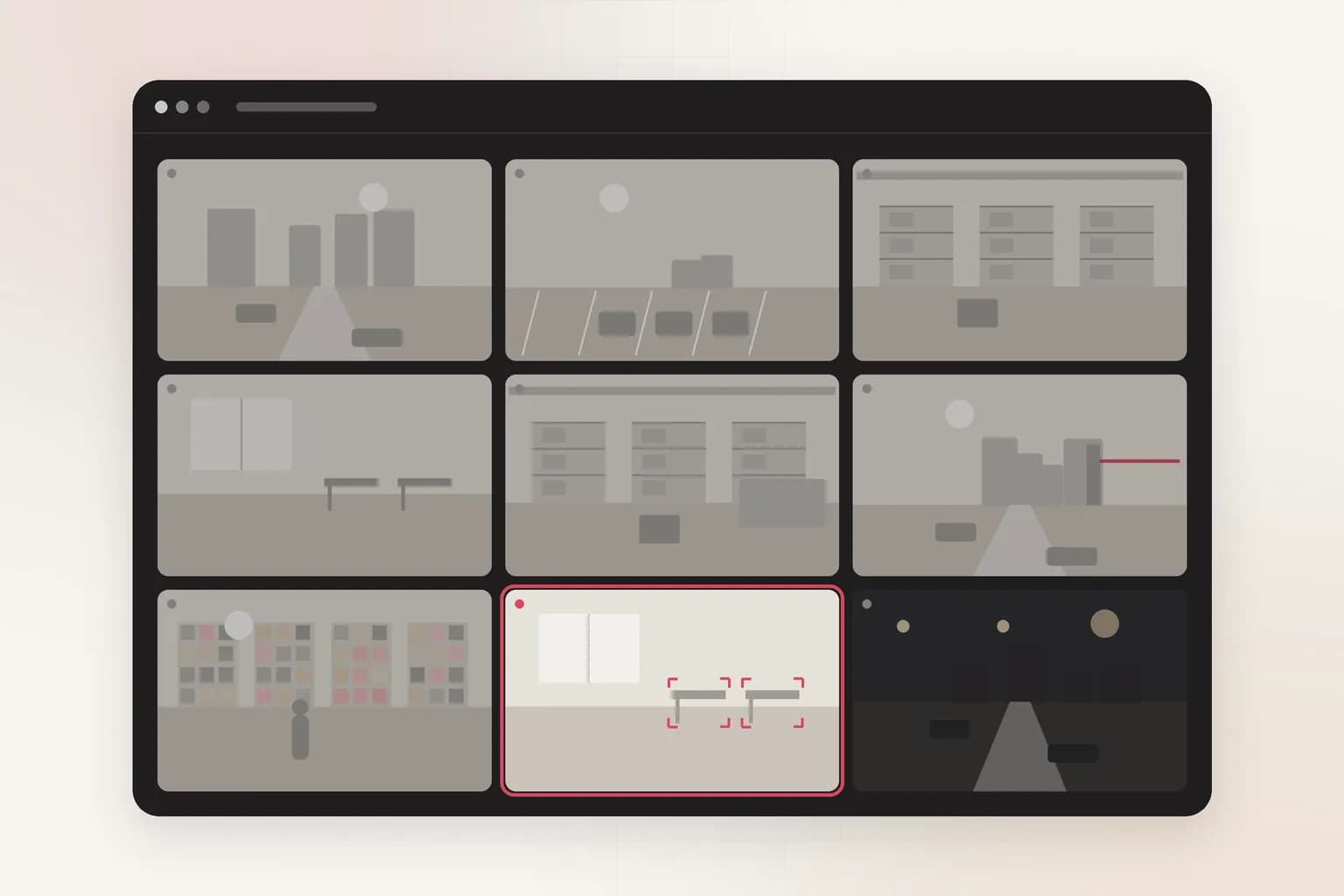
Security
People Counting & Crowd Limits
Count people on existing CCTV and get an alert when an area is over its limit. Occupancy, crowd and footfall for stores, venues and offices. Try it on a clip.
See the feature
Security
Abandoned Object Detection
AI unattended bag and abandoned object detection for CCTV in lobbies, stations and venues: an alert when a bag or suitcase is left alone longer than you allow.
See the feature
Search, reports & insights
CCTV Video Search
Search CCTV and recorded video in plain English: 'red truck at gate 2 after 10 PM'. Upload a clip or connect cameras and get the exact moments with timestamps.
See the featureGet started
Start face recognition access today
Free to start. Upload a clip or run it on our example footage before you connect a single camera.